Tuesday, 29 March 2016

Upgrading an Operating System from Windows 2003 to Windows 2008: How to Prevent Discovery Problems

Upgrading an Operating System from Windows 2003 to Windows 2008: How to Prevent Discovery Problems


  • Before you upgrade the operating system on a monitored computer, uninstall the Operations Manager agent. After the upgrade, reinstall the Operations Manager agent.

Reason:

  • The objects that the management pack discovers, such as logical disks, are hosted by a parent class that is not version-specific. When you upgrade the operating system, the order in which discovery occurs can result in duplicate objects being discovered.
  • For example, you upgrade a computer running Windows Server 2003 to Windows Server 2008. 
  • If the Windows Server 2003 discovery rules run first after the upgrade, the instance of the computer running Windows Server 2003 and its objects will be removed from discovery because the operating system base class has been removed. When the Windows Server 2008 discovery rules run, the computer and its objects will be discovered again.
  • If the Windows Server 2008 discovery rules run first after the upgrade, the computer running Windows Server 2008 and its objects will be discovered. When the Windows Server 2003 discovery rules run, the instance of the computer running Windows Server 2003 will be removed from discovery, but the objects hosted by that instance will not be removed.
  • So If you upgrade a computer without uninstalling the agent first and then discover duplicate objects, uninstall the agent to mark all hosted objects as deleted in the database. Next, reinstall the agent to only discover existing applications/objects.  


Connect-VIserver:Powershell Command to Add VMHost to Vcenter Server

Powershell Command to Add VMHost to Vcenter Server

  • Powershell has been so much part of life that almost all products provide powershell cmdlets to there products
  • one such popular product is VmWare.
  • Today we will see how to Add a Host to the Vcenter Server.
  • For this first you need to download the vSphere PowerCLI 6.0 and install it.
  • You can download it here --> Click here
  • To Add a Host use the below Command
$VIServer = Connect-VIserver -server <IP of your vcenter server>

Add-VMHost -Server $VIServer -Name VMHost1 -Location <Datacenter location> -User <Vmadmin user> -Password <VMAdmin Password>

Monday, 28 March 2016

SCOM Management pack for SQL Server Reporting Service 2012 (SSRS)

SCOM Management pack for SQL Server Reporting Service 2012


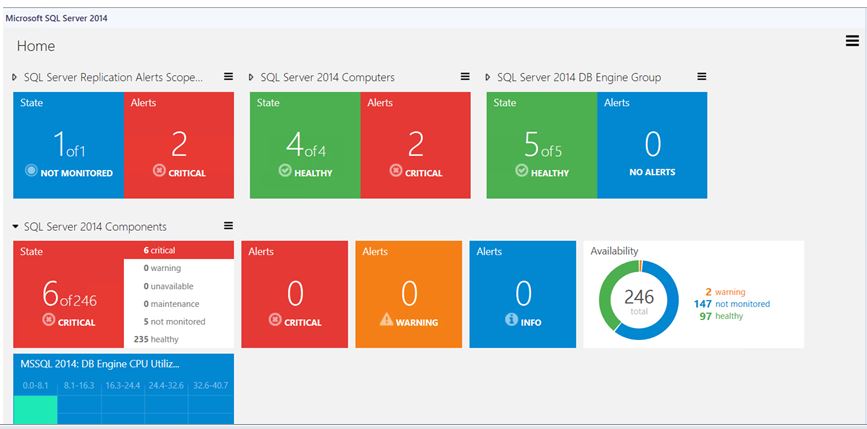
Microsoft SQL Server Dashboards Management Pack provides an ability to create and customize visualization on the fly. 

There are two views in the SQL Server Dashboards;
  •  Datacenter view
  • Instance view

The Datacenter view is an aggregated view. The Instance level provides detailed information about the selected object.

Datacenter View:

The Datacenter view is the Dashboard which provides information about the datacenter health state in an aggregated way. It is possible to drill down from the Datacenter view to the Instance view in order to investigate the root cause of the issue. It is possible to return to the home page from any Instance view by clicking the Home part of the navigation pane.


Datacenter View Tiles:


Datacenter view tile consists of two parts; the left part displays the number of objects within a group in the worst state and a total number of objects. The right part of the widget displays the number of alerts with the highest severity.


The expanded mode shows the number of objects in other states in addition to the data which is displayed in the collapsed mode.


By default when Alerts widget is expanded it displays three Alert widgets: Critical, Warning and Info. The number of alerts for each alert type is displayed within the corresponding widget.


The Aggregated performance tile shows five columns each representing the number of objects in the current data range.


Instance View:

Instance View of the Dashboard opened while drilling into a group or an object from the previous Instance view or Datacenter Dashboard is provided below:


Tuesday, 15 March 2016

SQL query to get all Distributed Applications created by users in SCOM

SQL query to get all Distributed Applications created by users in SCOM


  • Distributed Application are stored in SCOM in ManagedEntity Table
  • All Distributed Applications created by users start with "Service_" in the FullName column
  • If you want to query all your distributed application that are created for reporting purpose use the below query
***********
SELECT * FROM [OperationsManagerDB].[ManagedEntity] where (FullName like 'Service_%' AND Name is NULL)

*****************


Thursday, 10 March 2016

Dont install the latest Window OS Management pack -Serious Issues can mess up your monitoring

Dont install the latest Window OS Management pack -Serious Issues can screw up your monitoring


  • Recently released Microsoft OS MP has some serious issues.
  • There is total broken up and the Disk Monitoring is totally mess up.
  • People around the world are complaining about it.
  • I cant imagine when the product has so much investment each time when the OS MP comes it causes lot of issue.
  • I dont know when Microsoft is going to stick to the standard and release a quality OS MP without any issue.
  • Latest verison of this MP is 6.0.7297.0 and it a total avoid :)

Wednesday, 24 February 2016

Microsoft Office 365 SCOM 2012 R2 Management Pack

Microsoft Office 365 SCOM 2012 R2 Management Pack


  • Office 365 is the Microsoft Cloud based Solution for Office Suite of Products.
  • Using the Management pack give great visibility on the subscripts and alerts that occur in Microsoft Cloud which will affect your subscription.
  • Office 365 Management Pack can be used to: 
  • Add and configure Office 365 subscriptions and custom endpoints to be monitored in the Operations Manager
  • Proactively monitor connection health for the subscriptions and endpoints accessibility
  • Automatically discover services and features available for each subscription
  • Reflect Office 365 Incidents, Message Center, and Planned Maintenance messages for the subscription to Operations Manager alerts
  • Visualize the subscriptions health and corresponding alerts via the dashboard and alert view.

You can Download the MP from here:

Monday, 8 February 2016

Windows Server Monitoring Management pack 6.0.7303.0 for SCOM 2012 R2 -Provides Support to Monitor Windows Nano Server 2016

Windows Server Monitoring Management pack 6.0.7303.0 for SCOM 2012 R2 -Provides Support to Monitor Windows Nano Server 2016


Fixed Issues and Support:

  •     MP used to discover physical CPU, which performance monitor instance name property was not correlated with Windows PerfMon object (expecting instance name in (socket, core) format). That affected related rules and monitors. With this release, MP discovers logical processors, rather than physical, and populates performance monitor instance name in proper format
  •       Microsoft.Windows.Server.ClusterSharedVolumeMonitoring.mp and Microsoft.Windows.Server.Library.mp scripts code migration to PowerShell in scope of Windows Server 2016 Nano support (relevantly introduced in Windows Server 2016 MP version 10.0.1.0).
  •   Microsoft.Windows.Server.ClusterSharedVolumeMonitoring.ClusterSharedVolume.Monitoring.State monitor alert properties and description. The fix resolved property replacement failure warning been generated on monitor alert firing.