Showing posts with label by. Show all posts

Wednesday, 26 April 2017

Install Azure CLI 2.0 on Apple mac OS Step by Step Tutorial

Install Azure CLI 2.0 on Apple mac OS Step by Step Tutorial


  • To install Azure CLI on your Mac OS type the following command
curl -L https://aka.ms/InstallAzureCli | bash

  • Then restart your command shell for some changes to take effect.
exec -l $SHELL


Create Linux VM Using Powershell in Azure

Create Linux VM Using Powershell in Azure


  • Azure is the leading Cloud Platform today.
  • Lot of Customers are having a Hybrid setup with Cloud.
  • So With power shell now so famous lot of companies have deployed Azure CLI 2.0 to extend thier powershell skill in Cloud.
  • In Order to Create a Linux VM in cloud using powershell and CLI2.0 installed on you system use this command

az vm create -n LINUX01 -g LinuxGroup --image UbuntuLTS

  • This will create the Linux Machine called "LINUX01" with Ubuntu OS

Tuesday, 21 February 2017

SQL server is blank while adding Additional Management Server in SCOM 2012 R2

SQL server is blank while adding Additional Management Server in SCOM 2012 R2


  • I faced a weird issue today. As i was trying to add additional SCOM management Server , The SQL page where we select the OperationsManger DB was blank.
  • After some investigation i found that the Management Server was already showing in the SCOM Management server view as Unmonitored.
  • On i deleted it and tried again it worked and was able to see the OperationsManager DB

Tuesday, 17 January 2017

Install a Linux SQL Server VM in Azure Step by Step Tutorial

 Install a Linux SQL Server VM in Azure Step by Step Tutorial


To Create a Linux VM with SQL Server installed

  • Open the Azure portal.
  • Click New on the left.
  • In the New blade, click Compute.
  • Click See All next to the Featured Apps heading.
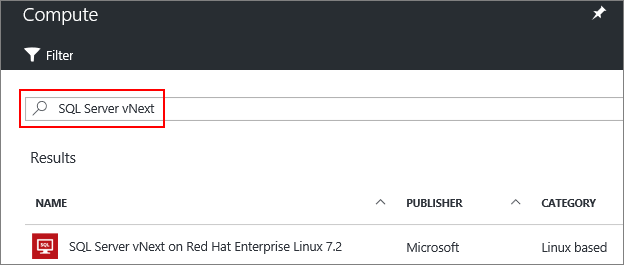
  • In the search box, type SQL Server vNext, and press Enter to start the search.


  • Select a SQL Server vNext image from the search results.
  • Click Create.
  • On the Basics blade, fill in the details for your Linux VM.
  • Click OK.
  • On the Size blade, choose a machine size. For development and functional testing, we recommend a VM size of DS2 or higher. For performance testing, use DS13 or higher.

  • Click Select.
  • On the Settings blade, you can make changes to the settings or keep the default settings.
  • Click OK.
  • On the Summary page, click OK to create the VM.

Install SQL Server tools on Red Hat Enterprise Linux Step by Step tutorial

Install SQL Server tools on Red Hat Enterprise Linux


  • Enter superuser mode.

sudo su


  • Download the Microsoft Red Hat repository configuration file.


curl https://packages.microsoft.com/config/rhel/7/prod.repo > /etc/yum.repos.d/msprod.repo


  • Exit superuser mode.


exit


  • Run the following commands to install 'mssql-tools' with the unixODBC developer package.


sudo yum update
sudo yum install mssql-tools unixODBC-utf16-devel

Uninstall SQL Server on Red Hat Enterprise Linux Step by Step Tutorial

Uninstall SQL Server on Red Hat Enterprise Linux Step by Step Tutorial


  • In order to remove the mssql-server package, follow these steps:

  • Run the remove command. This will delete the package and remove the files under /opt/mssql/. However, this command will not affect user-generated and system database files, which are located under /var/opt/mssql.

sudo yum remove mssql-server

  • Removing the package will not delete the generated database files. If you want to delete the database files use the following command:

sudo rm -rf /var/opt/mssql/

Upgrade SQL Server on Red Hat Enterprise Linux Step by Step Totorial

Upgrade SQL Server on Red Hat Enterprise Linux Step by Step Totorial


  • In order to upgrade the mssql-server package, execute the following command:

sudo yum update mssql-server


  • These commands will download the newest package and replace the binaries located under /opt/mssql/. The user generated databases and system databases will not be affected by this operation.

Install SQL Server on Red Hat Enterprise Linux 7.3 Step by Step Tutorial

Install SQL Server on Red Hat Enterprise Linux 7.3 Step by Step Tutorial


Video:


  • You need at least 3.25GB of memory to run SQL Server on Linux. 
  • To install the mssql-server package on RHEL, follow these steps:
  • Enter superuser mode.

sudo su

  • Download the Microsoft SQL Server Red Hat repository configuration file:

curl https://packages.microsoft.com/config/rhel/7/mssql-server.repo > /etc/yum.repos.d/mssql-server.repo

  • Exit superuser mode.

exit

  • Run the following commands to install SQL Server:

sudo yum install -y mssql-server

  • After the package installation finishes, run the configuration script and follow the prompts. Make sure to specify a strong password for the SA account (Minimum length 8 characters, including uppercase and lowercase letters, base 10 digits and/or non-alphanumeric symbols).

sudo /opt/mssql/bin/sqlservr-setup

  • Once the configuration is done, verify that the service is running:

systemctl status mssql-server

Saturday, 19 November 2016

How to Delete a SCCM 2012 r2 Site System role

How to Delete a SCCM 2012 r2 Site System role


You can delete a site system using the Configuration Manager console by performing the procedure described:

  • To delete a site system, all previously administrator-defined site system roles must be deleted. The ConfigMgr site system role is automatically added to any new site system created by the site component manager. Depending on the site role added, the Site component server role might also be assigned to the site system. These two roles cannot be added to a site system by the administrator and cannot be manually removed using the Configuration Manager console.

  • A site system can be deleted when it is still assigned the ConfigMgr site system server role, but it cannot be deleted if it is still assigned the Site component server server role.

  • In the Configuration Manager console of the primary site server, navigate to System CenterConfiguration Manager / Site Database / Site Management / <site code> - <site name> / Site Settings / Site Systems / <site system name>.

  • Verify that no site roles are currently assigned to the site system other than the ConfigMgr site system role.

  • Right-click <site system name> for the site system that you want to delete, and click Delete.

  • Click Yes on the Confirm Delete dialog box.

Wednesday, 19 October 2016

SCOM 2016 UR1 Step by Step Upgrade Tutorial

SCOM 2016 UR1 Step by Step Upgrade Tutorial


  • Ok the long wait for SCOM 2016 is over we have SCOM 2016 Generally available now in RTM version.
  • Now Microsoft has fixed the bugs and release UR1
  • You can Download the Update from below Link
  • http://catalog.update.microsoft.com/v7/site/Search.aspx?q=3190029
  • It recommended that you install UR1 even if you are going to install new SCOM 2016 enviornment, but  do not install this update rollup package immediately after you install the System Center 2016 Operations Manager server. Otherwise, the Health Service state may not be initialized.
  • It has 3 Updates ,One for SCOM Server,SCOM Console and SCOM Web Console.

Step1: Install Update on Management Server


  • Extract the Files that you downloaded to C:\Bin\UR1 folder
  • Login using the SCOM service account or account which has local admin,SCOM admin and SA Admin on SCOM database.Usually your SCOM service account will have these acc. So i suggest to use it.
  • Now Open Command Prompt in elevated mode and Go to "C:\Bin\UR1" folder
  • Type "KB3190029-AMD64-Server.msp"
  • This will lauch Update.You will be prompted to restart your system after the update.Click yes and system will restart
  • Once its up check the Application log for Event ID 1036. Make sure it successful.
  • Also check the DLL Versions in the Operations Manager\Server folder and make sure its showing 7.2.11759.0
  • You Should upgrade your additional management server in same way.

Step2:Upgrade SCOM Webconsole and SCOM Console:


  • Now Open Command Prompt in elevated mode and Go to "C:\Bin\UR1" folder
  • Type "KB3190029-AMD64-ENU-WebConsole.msp"
  • This will update the Web console.
  • Next Type "KB3190029-AMD64-ENU-Console.msp"
  • This will update the Console.

Step3: Updating the Gateway Servers:

  • There is no update for Gateway Server in UR1.

Step4:Update the SCOM Databases:


  • First Make sure you have stopped all SCOM services on your Management server and restart the SQL Server service once
  • Now go to the upgrade Management server at below location %SystemDrive%\Program Files\System Center 2016\Operations Manager\Server\SQL Script for Update Rollups
  • Login to the SCOM DW Database Server
  • Now open a SQL management studio query window, connect it to your OperationsManagerDW database.
  • Copy the SQL Scripts "UR_Datawarehouse.sql" and execute in the Query windows. This script could fail but continue trying till it succeeds.

Step5:Manually Import the management packs:

  • The path for these is on your management server, after you have installed the “Server” update: \Program Files\Microsoft System Center 2012 R2\Operations Manager\Server\Management Packs for Update Rollups
  • Below are the important Mp's
  • Microsoft.SystemCenter.Advisor.Internal.mpb
  • Microsoft.SystemCenter.OperationsManager.Library.mp
  • Microsoft.SystemCenter.Image.Library.mp
  • Microsoft.SystemCenter.Visualization.Library.mpb
  • Microsoft.SystemCenter.Advisor.mpb
  • Microsoft.SystemCenter.AlertAttachment.mpb
  • Microsoft.SystemCenter.IntelliTraceProfiling.mpb
  • Microsoft.SystemCenter.2007.mp

Step6::Apply the nano agent update to manually installed agents, or push the installation from the Pending view in the Operations console.


  • As you are aware SCOM 2016 supports Nano Servers monitoring.
  • You have install the updates manually by copying the updates to the server and install the updates.
  • For rest of agents login to SCOM Management server
  • Open SCOM Console==>Administration Tab
  • Click on "Pending Management".Select all the agent you see and Click "Approve".
Voila You are now in SOCM 2016 UR1 enjoy :)

Saturday, 15 October 2016

SCCM 2012 R2 Log File for Windows Update Agent and WSUS Server issues

SCCM 2012 R2 Log File for Windows Update Agent and WSUS Server issues


Windows Update Agent

The following table lists the log files that contain information related to the Windows Update Agent.
Log name
Description
Computer with log file
WindowsUpdate.log
Records details about when the Windows Update Agent connects to the WSUS server and retrieves the software updates for compliance assessment and whether there are updates to the agent components.
Client

WSUS Server

The following table lists the log files that contain information related to the WSUS server.
Log name
Description
Computer with log file
Change.log
Records details about the WSUS server database information that has changed.
WSUS server
SoftwareDistribution.log
Records details about the software updates that are synchronized from the configured update source to the WSUS server database.
WSUS server

SCCM 2012 R2 Log File for Microsoft Intune Connector issues

SCCM 2012 R2 Log File for Microsoft Intune Connector issues

Microsoft Intune Connector

The following table lists the log files that contain information related to the Microsoft Intune connector.
Log name
Description
Computer with log file
CertMgr.log
Records certificate and proxy account information.
Site server
CollEval.log
Records details about when collections are created, changed, and deleted by the Collection Evaluator.
Primary site and central administration site
Cloudusersync.log
Records license enablement for users.
Computer with the Intune connector
Dataldr.log
Records information about the processing of MIF files.
Site server
ddm.log
Records activities of the discovery data manager.
Site server
Distmgr.log
Records details about content distribution requests.
Top-level site server
Dmpdownloader.log
Records details on downloads from Microsoft Intune.
Computer with the Intune connector
Dmpuploader.log
Records details for uploading database changes to Microsoft Intune.
Computer with the Intune connector
hman.log
Records information about message forwarding.
Site server
objreplmgr.log
Records the processing of policy and assignment.
Primary site server
PolicyPV.log
Records policy generation of all policies.
Site server
outgoingcontentmanager.log
Records content uploaded to Microsoft Intune.
Computer with the Intune connector
Sitecomp.log
Records details of connector role installation.
Site server
SmsAdminUI.log
Records Configuration Manager console activity.
Computer that runs the Configuration Manager console
Smsprov.log
Records activities performed by the SMS Provider. Configuration Manager console activities use the SMS Provider.
Computer with the SMS Provider
SrvBoot.log
Records details about the Intune connector installer service.
Computer with the Intune connector
Statesys.log 
Records the processing of mobile device management messages.
Primary site and central administration site

SCCM 2012 R2 Log File for Software Updates and Network Access Protection issues


Software Updates and Network Access Protection

The following table lists the log files that contain information related to software updates and Network Access Protection.
Log name
Description
Computer with log file
ccmcca.log
Records details about the processing of compliance evaluation based on Configuration Manager NAP policy processing, and contains the processing of remediation for each software update required for compliance.
Client
ccmperf.log
Records activities related to the maintenance and capture of data related to client performance counters.
Client
PatchDownloader.log
Records details about the process of downloading software updates from the update source to the download destination on the site server.
The computer hosting the Configuration Manager console from which downloads are initiated
PolicyEvaluator.log
Records details about the evaluation of policies on client computers, including policies from software updates.
Client
RebootCoordinator.log
Records details about the coordination of system restarts on client computers after software update installations.
Client
ScanAgent.log
Records details about scan requests for software updates, the WSUS location, and related actions.
Client
SdmAgent.log
Records details about tracking of remediation and compliance. However, the software updates log file, Updateshandler.log, provides more informative details about installing the software updates required for compliance.
This log file is shared with compliance settings.
Client
ServiceWindowManager.log
Records details about the evaluation of maintenance windows.
Client
smssha.log
The main log file for the Configuration Manager Network Access Protection client and it contains a merged statement of health information from the two Configuration Manager components: location services (LS) and the configuration compliance agent (CCA). This log file also contains information about the interactions between the Configuration Manager System Health Agent and the operating system NAP agent, and also between the Configuration Manager System Health Agent and both the configuration compliance agent and the location services. It provides information about whether the NAP agent successfully initialized, the statement of health data, and the statement of health response.
Client
Smsshv.log
This is the main log file for the System Health Validator point and records the basic operations of the System Health Validator service, such as the initialization progress.
Site system server
Smsshvadcacheclient.log
Records details about the retrieval of Configuration Manager health state references from Active Directory Domain Services.
Site system server
SmsSHVCacheStore.log
Records details about the cache store used to hold the Configuration Manager NAP health state references retrieved from Active Directory Domain Services, such as reading from the store and purging entries from the local cache store file. The cache store is not configurable.
Site system server
smsSHVQuarValidator.log
Records client statement of health information and processing operations. To obtain full information, change the registry key LogLevel from 1 to 0 in the following location:HKEY_LOCAL_MACHINE\SOFTWARE\Microsoft\SMSSHV\Logging\@GLOBAL
Site system server
smsshvregistrysettings.log
Records any dynamic change to the System Health Validator component configuration while the service is running.
Site system server
SMSSHVSetup.log
Records the success or failure (with failure reason) of installing the System Health Validator point.
Site system server
SmsWusHandler.log
Records details about the scan process for the Inventory Tool for Microsoft Updates.
Client
StateMessage.log
Records details about software updates state messages that are created and sent to the management point.
Client
SUPSetup.log
Records details about the software update point installation. When the software update point installation completes, Installation was successful is written to this log file.
Site system server
UpdatesDeployment.log
Records details about deployments on the client, including software update activation, evaluation, and enforcement. Verbose logging shows additional information about the interaction with the client user interface.
Client
UpdatesHandler.log
Records details about software update compliance scanning and about the download and installation of software updates on the client.
Client
UpdatesStore.log
Records details about compliance status for the software updates that were assessed during the compliance scan cycle.
Client
WCM.log
Records details about software update point configurations and connections to the Windows Server Update Services (WSUS) server for subscribed update categories, classifications, and languages.
Site server
WSUSCtrl.log
Records details about the configuration, database connectivity, and health of the WSUS server for the site.
Site system server
wsyncmgr.log
Records details about the software updates synchronization process.
Site server
WUAHandler.log
Records details about the Windows Update Agent on the client when it searches for software updates.
Client

SCCM 2012 R2 Log File for SCCM Role-Based Administration ISSUES

SCCM 2012 R2 Log File for SCCM Role-Based Administration ISSUES


Role-Based Administration

The following table lists the log files that contain information related to managing role-based administration.
Log name
Description
Computer with log file
hman.log
Records information about site configuration changes, and the publishing of site information to Active Directory Domain Services.
Site server
SMSProv.log
Records WMI provider access to the site database.
Computer with the SMS Provider

SCCM 2012 R2 Log File for SCCM Reporting issues

SCCM 2012 R2 Log File for SCCM Reporting issues


Reporting

The following table lists the Configuration Manager log files that contain information related to reporting.
Log name
Description
Computer with log file
srsrp.log
Records information about the activity and status of the reporting services point.
Site system server
srsrpMSI.log
Records detailed results of the reporting services point installation process from the MSI output.
Site system server
srsrpsetup.log
Records results of the reporting services point installation process.
Site system server

SCCM 2012 R2 Log File for SCCM Remote Control ISSUE

SCCM 2012 R2 Log File for SCCM Remote Control ISSUE


Remote Control

The following table lists the log files that contain information related to remote control.
Log name
Description
Computer with log file
CMRcViewer.log
Records details about the activity of the remote control viewer.
Located in the %temp% folder on the computer running the remote control viewer.

SCCM 2012 R2 Log File for Operating System Deployment issue


SCCM 2012 R2 Log File for Operating System Deployment issue


Operating System Deployment

The following table lists the log files that contain information related to operating system deployment.
Log name
Description
Computer with log file
CAS.log
Records details when distribution points are found for referenced content.
Client
ccmsetup.log
Records ccmsetup tasks for client setup, client upgrade, and client removal. Can be used to troubleshoot client installation problems.
Client
CreateTSMedia.log
Records details for task sequence media creation.
The computer that runs the Configuration Manager console
For System Center 2012 R2 Configuration Manager and later:
DeployToVhd.log
Records details about the VHD creation and modification process
The computer that runs the Configuration Manager console
Dism.log
Records driver installation actions or update apply actions for offline servicing.
Site system server
Distmgr.log
Records details about the configuration of enabling a distribution point for PXE.
Site system server
DriverCatalog.log
Records details about device drivers that have been imported into the driver catalog.
Site system server
mcsisapi.log
Records information for multicast package transfer and client request responses.
Site system server
mcsexec.log
Records health check, namespace, session creation and certificate check actions.
Site system server
mcsmgr.log
Records changes to configuration, security mode and availability.
Site system server
mcsprv.log
Records multicast provider interaction with Windows Deployment Services (WDS).
Site system server
MCSSetup.log
Records details about multicast server role installation.
Site system server
MCSMSI.log
Records details about multicast server role installation.
Site system server
Mcsperf.log
Records details about multicast performance counter updates.
Site system server
MP_ClientIDManager.log
Records management point responses to the client ID requests task sequences initiated from PXE or boot media.
Site system server
MP_DriverManager.log
Records management point responses to Auto Apply Driver task sequence action requests.
Site system server
OfflineServicingMgr.log
Records details of offline servicing schedules and update apply actions on operating system .wim files.
Site system server
Setupact.log
Records details about Windows Sysprep and setup logs.
Client
Setupapi.log
Records details about Windows Sysprep and setup logs.
Client
Setuperr.log
Records details about Windows Sysprep and setup logs.
Client
smpisapi.log
Records details about the client state capture and restore actions, and threshold information.
Client
Smpmgr.log
Records details about the results of state migration point health checks and configuration changes.
Site system server
smpmsi.log
Records installation and configuration details about the state migration point.
Site system server
smpperf.log
Records the state migration point performance counter updates.
Site system server
smspxe.log
Records details about the responses to clients that PXE boot and details about the expansion of boot images and boot files.
Site system server
smssmpsetup.log
Records installation and configuration details about the state migration point.
Site system server
Smsts.log
Records task sequence activities.
Client
TSAgent.log
Records the outcome of task sequence dependencies before starting a task sequence.
Client
TaskSequenceProvider.log
Records details about task sequences when they are imported, exported, or edited.
Site system server
loadstate.log
Records details about the User State Migration Tool (USMT) and restoring user state data.
Client
scanstate.log
Records details about the User State Migration Tool (USMT) and capturing user state data.
Client