Showing posts with label IN. Show all posts

Thursday, 2 August 2018

What are the various Site System Role in System center configuration manager (SCCM) Current Branch

Service connection point:


  • A site system role that uploads usage data from your site, and is required to make updates for Configuration Manager available in the console. This role also helps to manage mobile devices with Microsoft Intune and on-premises MDM. 


  • A hierarchy only supports a single instance of this role, and that must be at the top-tier site of your hierarchy. If you expand a standalone primary site into a larger hierarchy, uninstall this role from the primary site, and then install it at the central administration site. 


Reporting services point:


  • A site system role that integrates with SQL Server Reporting Services to create and manage reports for Configuration Manager. 
  • This role is supported at primary sites and the central administration site, and you can install multiple instances of this role at a supported site.


Software update point:

  • A site system role that integrates with Windows Server Update Services (WSUS) to provide software updates to Configuration Manager clients. This role is supported at all sites:

State migration point:

  • When you migrate a computer to a new operating system, this site system role stores user state data. This role is supported at primary sites and at secondary sites. Install multiple instances of this role at a site, and at multiple sites in the same hierarchy.
Management point:

  • A site system role that provides policy and service location information to clients. It also receives configuration data from clients.
  • By default, this role installs on the site server when you install a new primary or secondary site. Primary sites support multiple instances of this role. 

Fallback status point:

  • A site system role that helps you monitor client installation. It identifies clients that are unmanaged because they can't communicate with their management point. 


Enrollment proxy point:

  • A site system role that manages Configuration Manager enrollment requests from mobile devices and macOS computers. Although this role is supported only at primary sites, you can install multiple instances of this role at a site, or at multiple sites in the same hierarchy.


Enrollment point:

  • A site system role that uses PKI certificates for Configuration Manager to enroll mobile devices and macOS computers. Although this role is supported only at primary sites, you can install multiple instances of this role at a site, or at multiple sites in the same hierarchy.


Distribution point:


  • A site system role that contains source files for clients to download, for example:


Application content
Software packages
Software updates
OS images
Boot image

Asset Intelligence synchronization point:


  • A site system role that connects to Microsoft to download information for the Asset Intelligence catalog. This role also uploads uncategorized titles, so that Microsoft can consider them for future inclusion in the catalog.


Data warehouse service point:

  • Use the data warehouse service point to store and report on long-term historical data in your Configuration Manager environment.

Cloud management gateway connection point:

  • A site system role for communicating with the cloud management gateway.

Certificate registration point:


  • A site system role that communicates with a server that runs the Network Device Enrollment Service (NDES). This role manages device certificate requests that use the Simple Certificate Enrollment Protocol (SCEP). This role is supported only at primary sites and the central administration site.

Application Catalog website point:

  • A site system role that provides users with a list of available software from the Application Catalog. Although this role is supported only at primary sites, you can install multiple instances of this role at a site,


Application Catalog web service point:

  • A site system role that provides software information to the Application Catalog website from the software library. Although this role is supported only at primary sites, you can install multiple instances of this role at a site, or at multiple sites in the same hierarchy.

SMS Provider:

  • The assigns this role to each computer that hosts an instance of the SMS Provider. The provider is the interface between a Configuration Manager console and the site database. By default, this role automatically installs on the site server of a central administration site and primary sites. Install additional instances at each site to provide access to additional administrative users or for redundancy.


Configuration Manager site database server:

  • The site assigns this role to site system servers that hold an instance of the site database. Only move this role to a new server by running setup to modify the site to use a different instance of SQL Server to host the site database.


Sunday, 2 July 2017

What is Data Model in Couch DB

Data Model

* Database is the outermost data structure/container in CouchDB.

* Each database is a collection of independent documents.

* Each document maintains its own data and self-contained schema.

* Document metadata contains revision information, which makes it possible to merge the differences occurred while the databases were disconnected.

* CouchDB implements multi version concurrency control, to avoid the need to lock the database field during writes.

Wednesday, 26 April 2017

Create Linux VM Using Powershell in Azure

Create Linux VM Using Powershell in Azure


  • Azure is the leading Cloud Platform today.
  • Lot of Customers are having a Hybrid setup with Cloud.
  • So With power shell now so famous lot of companies have deployed Azure CLI 2.0 to extend thier powershell skill in Cloud.
  • In Order to Create a Linux VM in cloud using powershell and CLI2.0 installed on you system use this command

az vm create -n LINUX01 -g LinuxGroup --image UbuntuLTS

  • This will create the Linux Machine called "LINUX01" with Ubuntu OS

Tuesday, 21 February 2017

SQL server is blank while adding Additional Management Server in SCOM 2012 R2

SQL server is blank while adding Additional Management Server in SCOM 2012 R2


  • I faced a weird issue today. As i was trying to add additional SCOM management Server , The SQL page where we select the OperationsManger DB was blank.
  • After some investigation i found that the Management Server was already showing in the SCOM Management server view as Unmonitored.
  • On i deleted it and tried again it worked and was able to see the OperationsManager DB

Saturday, 28 January 2017

What is Just Enough Administration or JEA in Windows 2016

What is Just Enough Administration or JEA in Windows 2016


  • JEA is new kind of Administration Model in Windows 2016.
  • Its Role Based administration Model where you can fine tune custom Admin Settings.
  • To understand more look at the below video

Video:

Tuesday, 17 January 2017

Install a Linux SQL Server VM in Azure Step by Step Tutorial

 Install a Linux SQL Server VM in Azure Step by Step Tutorial


To Create a Linux VM with SQL Server installed

  • Open the Azure portal.
  • Click New on the left.
  • In the New blade, click Compute.
  • Click See All next to the Featured Apps heading.
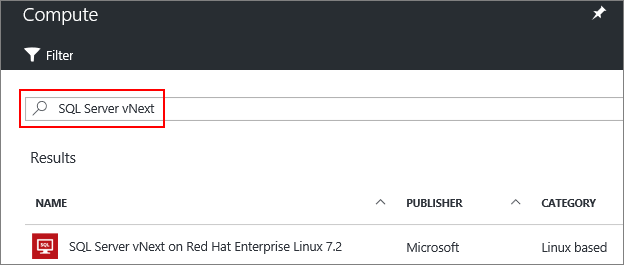
  • In the search box, type SQL Server vNext, and press Enter to start the search.


  • Select a SQL Server vNext image from the search results.
  • Click Create.
  • On the Basics blade, fill in the details for your Linux VM.
  • Click OK.
  • On the Size blade, choose a machine size. For development and functional testing, we recommend a VM size of DS2 or higher. For performance testing, use DS13 or higher.

  • Click Select.
  • On the Settings blade, you can make changes to the settings or keep the default settings.
  • Click OK.
  • On the Summary page, click OK to create the VM.

Saturday, 10 September 2016

Content not Downloading to Distribution Point in SCCM 2012 R2

Content not Downloading to Distribution Point in SCCM 2012 R2


  • SCCM is a very complex system.
  • It hard to troubleshoot even with such exhaustive logging
  • Reason is that the Mutiple issues on system can cause a side effect 
  • So one of the frequent issue i face in my envionment is that the Content is not avaialble in Distribution Point.
  • To resolve this the only effective solution i found is to reboot the server.
  • So dont waste time investigating logs, as it will give 1000 varities of error
  • As first step reboot the Distribution point server. 
  • If you still have issues then you can troubleshoot with logs

Wednesday, 7 September 2016

How to restore a Corrupt SCOM Database in SCOM 2012 R2 Step by Step

How to restore a Corrupt SCOM Database in SCOM 2012 R2

  • Sometimes the SCOM database gets corrupted because of disk issue.
  • Restoring it from Backup is a very lengthy process and time consuming.
  • Opening a ticket with Microsoft might help, but there default reply is to restore from last good backup
  • So how you quickly recovery a corrupt SCOM database?. There is a way.
  • First Stop all SCOM Services on your management server.
  • Then Put the Corrupt SCOM database in SINGLE_USER Mode.
If you Operations Manager DB is corrupted Run the below command,

DBCC CHECKDB ('OperationManager', REPAIR_ALLOW_DATA_LOSS) WITH ALL_ERRORMSGS, NO_INFOMSGS
    If you Operations Manager Datawhare house is corrupted Run the below command,

    DBCC CHECKDB ('OperationsManagerDW', REPAIR_ALLOW_DATA_LOSS) WITH ALL_ERRORMSGS, NO_INFOMSGS

    • Once completed you should be able to bring your database online

    Tuesday, 2 August 2016

    Edge servers not discovered in Skype Management pack in SCOM 2012 R2

    Edge servers not discovered  in Skype Management pack in SCOM 2012 R2


    • Recetnly i was working for one of my customer and they have imported the Skype Management pack. All Skype roles are discovered except the Edge Server.
    • They are showing as Agent management in the SCOM server, but still not appear in Skype Management pack.
    Action taken:

    • I directly felt that discovery script for Skype is failing on these server. As generally Edge servers are in DMZ, then are not in Domain.
    • So i went to Agent Skype Edge server and Check the Operations manager event log for Error and found the following
    Description: DiscoverMachine.ps1 : ——————————————————————————– -Script Name: Skype for Business Server 2015 MP Machine Topology Discovery -Run as account: nt authority\network service -Execution Policy: RemoteSigned ——————————————————————————– Value of Source Id is {5AAFA97E-833F-9AD1-2678-56AFD1E2214C}. Value of ManagedEntity Id is {C4F6E362-BE95-93C1-729D-3F7BD6FAAFD6}. Value of Target Computer is EDGESERVER01.group.domain.com. SkypeForBusiness Module is added Successfully initialize discovery data. An exception occurred during discovery script, Exception : Could not connect to SQL server : [Exception=System.Data.SqlClient.SqlException (0x80131904): Cannot open database “xds” requested by the login. The login failed. Login failed for user ‘NT AUTHORITY\NETWORK SERVICE’. 

    Solution:

    • Add the “Network Service” to the following local groups on each Edge server.
    • "RTC Component Local Group" and "
      RTC Local Administrators".
    • Also enabe Proxy on the agent.
    • Then restart the SCOM service on the agent and voila its show in Skype management pack in few minutes.

    Saturday, 21 May 2016

    How to Enable Logging for Linux agent in SCOM 2012 r2

    How to Enable Logging for Linux agent in SCOM 2012 r2

      • Linux agent is one of the most challenging to monitor in SCOM. As is cross platform monitoring it does not give clear error when there is error.
      • So you should enable Loging on Agent to see whats happening.
      • Once loging is enabled you can see log created in /var/opt/microsoft/scx/log.log
      • To see the current state of loging type scxadmin -log-list
      • To set loging to Troubleshooting type scxadmin -log-set all verbrose

      • This will set the loging to TRACE and will start recording all events.
      • Once your troubleshooting is compeleted you have to reset the log back/
      • To do this use the command scxadmin -log-reset
      • This will reset the logs back to info level from Trace level

    Sunday, 24 April 2016

    Special Characters that can be used in Windows PowerShell output

    Special Characters that can be used in Windows PowerShell output


    Special Characters that can be used in Windows PowerShell output are below this will be useful when you want to include these below special characters in your output.

    • `0 -- Null
    • `a -- Alert
    • `b -- Backspace
    • `n -- New line
    • `r -- Carriage return
    • `t -- Horizontal tab
    • `' -- Single quote
    • `" -- Double quote

    Tuesday, 19 April 2016

    How to Remove SCOM Certificates Imported with MOMCertImport Tool in SCOM 2012 R2

    How to Remove SCOM Certificates Imported with MOMCertImport Tool in SCOM 2012 R2


    To remove a SCOM certificates imported with the MOMCertImport tool

    • Log on to the computer with an account that is a member of the Administrators group.
    • On the Windows desktop, click Start, and then click Run.
    • In the Run dialog box, type cmd, and then click OK.
    • At the command prompt, type <drive_letter>: (where <drive_letter> is the drive where the System Center 2012 – Operations Manager installation media is located), and then press ENTER.
    • Type cd\SupportTools\amd64 and then press ENTER.
    • Type the following:
    • MOMCertImport /Remove, and then press ENTER.

    Wednesday, 6 April 2016

    How to get list of All commands for SCOM 2012 R2 Module in Powershell

    How to get list of All commands for SCOM 2012 R2 Module in Powershell


    • Today i am going to Show you how get list of all commands available in SCOM module.
    • First Open the Powershell and Import the SCOM module
                        Import-Module OperationsManager
    • This will load the SCOM module in Powershell
    • Then to see all the commands in the OperationsManager Modulle type the below command
                       get-command - module OperationsManager | more
    • This will list all the commands in SCOM.

    Wednesday, 30 March 2016

    Disk Performance dashboard view is empty in SCOM 2012 R2

    Disk Performance dashboard view is empty in SCOM 2012 R2


    • Disk Performance Dashboard View is empty. This is because the rule to see this data is not enabled. In order to populate this view, please enable the rules.
    In 2012 Monitoring MP:
    • Microsoft.Windows.Server.6.2.OperatingSystem.TotalPercentDPCTime.Collection
    • Microsoft.Windows.Server.6.2.OperatingSystem.TotalPercentInterruptTime.Collection
    • Microsoft.Windows.Server.6.2.Processor.PercentDPCTime.Collection
    • Microsoft.Windows.Server.6.2.Processor.PercentInterruptTime.Collection
    In 2012 R2 Monitoring MP:
    • Microsoft.Windows.Server.2012.R2.OperatingSystem.TotalPercentDPCTime.Collection
    • Microsoft.Windows.Server.2012.R2.OperatingSystem.TotalPercentInterruptTime.Collection

    Tuesday, 15 March 2016

    SQL query to get all Distributed Applications created by users in SCOM

    SQL query to get all Distributed Applications created by users in SCOM


    • Distributed Application are stored in SCOM in ManagedEntity Table
    • All Distributed Applications created by users start with "Service_" in the FullName column
    • If you want to query all your distributed application that are created for reporting purpose use the below query
    ***********
    SELECT * FROM [OperationsManagerDB].[ManagedEntity] where (FullName like 'Service_%' AND Name is NULL)

    *****************


    Thursday, 8 October 2015

    What is a Management Pack in SCOM mean

    What is a Management Pack in SCOM mean

    • Generally when you explain to your top management about SCOM, you use the word Management pack. All of sudden on of the executive stopped and asked me what does Management Pack mean, So i taught it would be useful if i give some explanation here.
    • Management packs typically contain monitoring settings for applications and services. After a management pack is imported into a management group, System Center 2012 – Operations Manager immediately begins monitoring objects based on default configurations and thresholds that are set by the management pack.
    Each management pack can contain any or all of the following parts:
    • Monitors, which direct an agent to track the state of various parts of a managed component.
    • Rules, which direct an agent to collect performance and discovery data, send alerts and events, and more.
    • Tasks, which define activities that can be executed by either the agent or the console.
    • Knowledge, which provides textual advice to help operators diagnose and fix problems.
    • Views, which offer customized user interfaces for monitoring and managing this component.
    • Reports, which define specialized ways to report on information about this managed component.
    • Object discoveries, which identify objects to be monitored.
    • Run As profiles, which allow you to run different rules, tasks, monitors, or discoveries under different accounts on different computers.

    Tuesday, 1 September 2015

    PowerShell Command to get Specific Alert in SCOM 2012 R2 and SCOM 2016

    PowerShell Command to get Specific Alert in SCOM 2012 R2 and SCOM 2016


    • Powershell Command to get only Specific alert with Specific Name is something we are asked frequently
    • Use the Below Command to get it done
    • GET-SCOMAlert Where {$_.Name --eq "Alert You want to get"}

    Tuesday, 25 August 2015

    Cool Dashboards in recent SQL 2012 MP

    Cool Dashboard in recent SQL 2012 MP


    • Microsoft has released a pretty cool dashboard in recent SQL 2012 MP.
    • It gives awesome dashbaord view for the team to Monitoring and know you database perforamnce from single console
    • To Download latest MP click here --> Download


    Friday, 31 July 2015

    New ALT TAB Button in Windows 10

    New ALT TAB Button in Windows 10


    • Earlier to Jump Between different Application we have to Minimize one and maximize one. 
    • Then we started using ALT+TAB button to switch between different Application windows
    • Now Microsoft has given a button next to Search Box in Windows 10
    • If you Click on it You can jump between various windows.
    • This has been done to make compaitable with Windows Tab (Surface) and Windows Phone

    New Search Box in Windows 10

    New Search Box in Windows 10


    • Earlier version of Windows You have to click on Start to Search.
    • But In Windows 10 this has been moved next to Start in Launch Bar itself
    • So you can SEARCH for Notepad and Word and it will show up