Showing posts with label SCOM. Show all posts

Wednesday, 19 October 2016

SCOM 2016 UR1 Step by Step Upgrade Tutorial

SCOM 2016 UR1 Step by Step Upgrade Tutorial


  • Ok the long wait for SCOM 2016 is over we have SCOM 2016 Generally available now in RTM version.
  • Now Microsoft has fixed the bugs and release UR1
  • You can Download the Update from below Link
  • http://catalog.update.microsoft.com/v7/site/Search.aspx?q=3190029
  • It recommended that you install UR1 even if you are going to install new SCOM 2016 enviornment, but  do not install this update rollup package immediately after you install the System Center 2016 Operations Manager server. Otherwise, the Health Service state may not be initialized.
  • It has 3 Updates ,One for SCOM Server,SCOM Console and SCOM Web Console.

Step1: Install Update on Management Server


  • Extract the Files that you downloaded to C:\Bin\UR1 folder
  • Login using the SCOM service account or account which has local admin,SCOM admin and SA Admin on SCOM database.Usually your SCOM service account will have these acc. So i suggest to use it.
  • Now Open Command Prompt in elevated mode and Go to "C:\Bin\UR1" folder
  • Type "KB3190029-AMD64-Server.msp"
  • This will lauch Update.You will be prompted to restart your system after the update.Click yes and system will restart
  • Once its up check the Application log for Event ID 1036. Make sure it successful.
  • Also check the DLL Versions in the Operations Manager\Server folder and make sure its showing 7.2.11759.0
  • You Should upgrade your additional management server in same way.

Step2:Upgrade SCOM Webconsole and SCOM Console:


  • Now Open Command Prompt in elevated mode and Go to "C:\Bin\UR1" folder
  • Type "KB3190029-AMD64-ENU-WebConsole.msp"
  • This will update the Web console.
  • Next Type "KB3190029-AMD64-ENU-Console.msp"
  • This will update the Console.

Step3: Updating the Gateway Servers:

  • There is no update for Gateway Server in UR1.

Step4:Update the SCOM Databases:


  • First Make sure you have stopped all SCOM services on your Management server and restart the SQL Server service once
  • Now go to the upgrade Management server at below location %SystemDrive%\Program Files\System Center 2016\Operations Manager\Server\SQL Script for Update Rollups
  • Login to the SCOM DW Database Server
  • Now open a SQL management studio query window, connect it to your OperationsManagerDW database.
  • Copy the SQL Scripts "UR_Datawarehouse.sql" and execute in the Query windows. This script could fail but continue trying till it succeeds.

Step5:Manually Import the management packs:

  • The path for these is on your management server, after you have installed the “Server” update: \Program Files\Microsoft System Center 2012 R2\Operations Manager\Server\Management Packs for Update Rollups
  • Below are the important Mp's
  • Microsoft.SystemCenter.Advisor.Internal.mpb
  • Microsoft.SystemCenter.OperationsManager.Library.mp
  • Microsoft.SystemCenter.Image.Library.mp
  • Microsoft.SystemCenter.Visualization.Library.mpb
  • Microsoft.SystemCenter.Advisor.mpb
  • Microsoft.SystemCenter.AlertAttachment.mpb
  • Microsoft.SystemCenter.IntelliTraceProfiling.mpb
  • Microsoft.SystemCenter.2007.mp

Step6::Apply the nano agent update to manually installed agents, or push the installation from the Pending view in the Operations console.


  • As you are aware SCOM 2016 supports Nano Servers monitoring.
  • You have install the updates manually by copying the updates to the server and install the updates.
  • For rest of agents login to SCOM Management server
  • Open SCOM Console==>Administration Tab
  • Click on "Pending Management".Select all the agent you see and Click "Approve".
Voila You are now in SOCM 2016 UR1 enjoy :)

SCOM 2012 R2 Console crashes after October Windows Update -Hotfix KB3200006

SCOM 2012 R2 Console crashes after October Windows Update


  • The SCOM 2012 R2 Console crashes after installing the Latest October patches.
  • This is know issue and microsft has released a Hotfix KB3200006.
  • https://support.microsoft.com/en-us/kb/3200006.
  • Please downaload the hotfix and install to resolve the Console Crash issue.
  • It affects all OS versions. So you need to install on App OS where there is SCOM 2012 R2 Console irrespective of the UR 

Wednesday, 7 September 2016

How to restore a Corrupt SCOM Database in SCOM 2012 R2 Step by Step

How to restore a Corrupt SCOM Database in SCOM 2012 R2

  • Sometimes the SCOM database gets corrupted because of disk issue.
  • Restoring it from Backup is a very lengthy process and time consuming.
  • Opening a ticket with Microsoft might help, but there default reply is to restore from last good backup
  • So how you quickly recovery a corrupt SCOM database?. There is a way.
  • First Stop all SCOM Services on your management server.
  • Then Put the Corrupt SCOM database in SINGLE_USER Mode.
If you Operations Manager DB is corrupted Run the below command,

DBCC CHECKDB ('OperationManager', REPAIR_ALLOW_DATA_LOSS) WITH ALL_ERRORMSGS, NO_INFOMSGS
    If you Operations Manager Datawhare house is corrupted Run the below command,

    DBCC CHECKDB ('OperationsManagerDW', REPAIR_ALLOW_DATA_LOSS) WITH ALL_ERRORMSGS, NO_INFOMSGS

    • Once completed you should be able to bring your database online

    Step by Step Procedure to Restore SCOM 2012 R2 Databases after crash or Disaster:

    Step by Step Procedure to Restore SCOM 2012 R2 Databases after crash or Disaster:


    Many times for various reason we have to restore the SCOM databases.Follow the below procedure

    • Start SQL Server Management Studio.
    • In the Connect to Server dialog box, select the appropriate values in the Server type drop-down combo box, in the Server name box, and in the Authentication box.
    • Click Connect.
    • In Object Explorer, expand Databases, and then select the OperationsManager, OperationsManagerAC, or OperationsManagerDW database.
    • Right-click the database, point to Tasks, and then click Restore.
    • Click Database to open the Restore Database dialog box.
    • On the General page, the name of the restoring database appears in the To database list.
    • In the To a point in time text box, either retain the default (the most recent possible) or select a specific date and time by clicking the browse button, which opens the Point in Time Restore dialog box.
    • To specify the source and location of the backup sets to restore, click the From Device option.
    • Click Browse to open the Specify Backup dialog box.
    • In the Backup media list box, select one of the listed device types. To select one or more devices for the Backup location list box, click Add.
    • In the Select the backup sets to restore grid, select the backups to restore. This grid displays the backups available for the specified location.
    • In the Restore options panel, select the Overwrite the existing database option.
    • In the Restore the database files as options panel, verify the original database file name and path are correct.
    • For the Recovery state options, specify the state option Leave the databases ready to use by rolling back the uncommitted transactions
    • Additional transaction logs cannot be restored.
    • Click OK to restore the database.
    • Make sure whenever you restore always restore OperationsManager, and OperationsManagerDW database. Orelse youw ill face 31552 issue.

    SCOM 2012 R2 UR11 upgrade step by step


    SCOM 2012 R2 UR11 upgrade step by step


    • Microsoft released Update(update Roleup) every now and then. They generally do lot of bug fixes in these update.Today Microsoft has released SCOM UR11 Upgrade. Lets go Step by Step in this upgrade.
    • First Download the UR11 from below Site.


    http://catalog.update.microsoft.com/v7/site/Search.aspx?q=3183990


    Step1: Upgrading the Management Server:


    • Extract the Files that you downloaded to C:\Bin\UR11 folder.
    • Login using the SCOM service account or account which has local admin,SCOM admin and SA Admin on SCOM database.Usually your SCOM service account will have these acc. So i suggest to use it.

    • Now Open Command Prompt in elevated mode and Go to "C:\Bin\UR11" folder
    • Type "KB3183990-AMD64-Server.msp"
    • This will launch Update.You will be prompted to restart your system after the update.Click yes and system will restart
    • Once its up check the Application log for Event ID 1036. Make sure it successful.
    • Also make sure File Version are 7.1.10226.1239 in your Management Server.
    • You Should upgrade your additional management server in same way before proceeding to next step.
    Step2:Upgrade SCOM Webconsole and SCOM Console:

    • Now Open Command Prompt in elevated mode and Go to "C:\Bin\UR11" folder
    • Type "KB3183990-AMD64-ENU-WebConsole.msp"
    • This will update the Web console.
    • Next Type "KB3183990-AMD64-ENU-Console.msp"
    •  This will update the Console.
    Step3:Updating the Gateway Servers:

    • Login to your Gateway server. Copy the Downloaded file  TO "C:\Bin\UR11" Folder
    • Now Open Command Prompt in elevated mode and Go to "C:\Bin\UR11" folder
    • Type "KB3183990-AMD64-Gateway.msp"
    • This will update the Gateway Server
    Step4:Update the SCOM Databases:

    • First Make sure you have stopped all SCOM services on your Management server and restart the SQL Server service once
    • Login to the SCOM Database Server
    • Open a SQL management studio query window, connect it to your Operations Manager database.
    • Now go to the upgrade Management server at below location %SystemDrive%\Program Files\Microsoft System Center 2012 R2\Operations Manager\Server\SQL Script for Update Rollups
    • Copy the SQL Scripts "update_rollup_mom_db.sql" and execute in the Query windows. This script could faill but continue trying till it succeeds
    • Try re-running the script several times until it completes without errors.  In a production environment, you have to shut down the services (sdk, config, and healthservice) on your management servers, to break their connection to the databases, to get a successful run. 
    • Once OperationsManager DB is update close the Query window.
    • Now open a SQL management studio query window, connect it to your OperationsManagerDW database.
    • Copy the SQL Scripts "UR_Datawarehouse.sql" and execute in the Query windows. This script could fail but continue trying till it succeeds.
    Note: Dont Proceed to Next step till it succeeds

    Step5:Import the management packs:
    • The path for these is on your management server, after you have installed the “Server” update: \Program Files\Microsoft System Center 2012 R2\Operations Manager\Server\Management Packs for Update Rollups
    • You can install the MP.
    Step5:Updating the Agents:

    • Login to SCOM Management server
    • Open SCOM Console==>Administration Tab
    • Click on "Pending Management".Select all the agent you see and Click "Approve".

    Thursday, 7 July 2016

    Dell Client Management Pack Version 5.1 for SCOM 2012 R2

    Dell Client Management Pack Version 5.1 for SCOM 2012 R2


    The Client Management Pack enables the following operations to manage Dell client systems:


    • Discover and monitor Dell Latitude, Dell Precision, and Dell OptipPlex computers running supported OMCI and client Windows operating systems.
    • Group Dell Clients without instrumentation and client systems running without OMCI service under the Dell UnManaged Clients group.NOTE: Dell Vostro systems are displayed under the Dell UnManaged Clients group.
    • Monitor the health status for client hardware components by polling at periodic intervals, and update the state of each component in the diagram view. A health status is a standardized description of the functional performance of a component, system, or service. For more information, see Tasks
    • Perform client shutdown and reboot tasks.
    • Launch remote desktop for Dell client systems.
    • Generate reports on Dell Windows


    Saturday, 21 May 2016

    How to Enable Logging for Linux agent in SCOM 2012 r2

    How to Enable Logging for Linux agent in SCOM 2012 r2

      • Linux agent is one of the most challenging to monitor in SCOM. As is cross platform monitoring it does not give clear error when there is error.
      • So you should enable Loging on Agent to see whats happening.
      • Once loging is enabled you can see log created in /var/opt/microsoft/scx/log.log
      • To see the current state of loging type scxadmin -log-list
      • To set loging to Troubleshooting type scxadmin -log-set all verbrose

      • This will set the loging to TRACE and will start recording all events.
      • Once your troubleshooting is compeleted you have to reset the log back/
      • To do this use the command scxadmin -log-reset
      • This will reset the logs back to info level from Trace level

    Sunday, 24 April 2016

    SCOM 2012 R2 Windows Server 2012 R2 Storage Direct Management Pack

    SCOM 2012 R2 Windows Server 2012 R2 Storage Direct  Management Pack


    • Microsoft has released a new Storage Management Pack for Window Server 2012 R2.
    • This management pack supports up to:
      16 Storage Nodes
      12 Storage Pools
      120 File Shares.
    • This Management Pack contains rules to monitor physical disk and enclosure state in storage spaces.
    • Health is calculated by the storage service and is passed to Virtual Machine Manager (VMM) using the Storage Management API (SM-API), and is in turn passed to Operations Manager (OM) through the OM connector for VMM.

    • There are no state or alert visualizations as part of this MP. 
    • All alerts for physical disks and enclosures must be manually closed and any health state impact manually reset.
    • You can see file share and storage pool health on the VMM Fabric Dashboard or you can build your own views in a custom MP. 
    • If OM agent proxy setting is not enabled for file server nodes and VMM server, it needs to be turned on. This can be done from Administration space in OM console.
    You can see the Rollup Model below for the MP


    You can Download the Management pack from here -->Click here to download

    Tuesday, 19 April 2016

    How to Remove SCOM Certificates Imported with MOMCertImport Tool in SCOM 2012 R2

    How to Remove SCOM Certificates Imported with MOMCertImport Tool in SCOM 2012 R2


    To remove a SCOM certificates imported with the MOMCertImport tool

    • Log on to the computer with an account that is a member of the Administrators group.
    • On the Windows desktop, click Start, and then click Run.
    • In the Run dialog box, type cmd, and then click OK.
    • At the command prompt, type <drive_letter>: (where <drive_letter> is the drive where the System Center 2012 – Operations Manager installation media is located), and then press ENTER.
    • Type cd\SupportTools\amd64 and then press ENTER.
    • Type the following:
    • MOMCertImport /Remove, and then press ENTER.

    Monday, 18 April 2016

    Step by Step Guide to recovery or Move Operations Manager Database from Old Server to New Server

    Step by Step Guide to Move Operations Manager Database from Old Server to New Server


    • Step1:Stop Operation Manager services
    On all the management servers in the management group, stop the Operations Manager services:
    * System Center Data Access
    * System Center Management
    * System Center Management Configuration

    • Step2: Create Backup of Old OperationManager Database and move it to new Server

    * On the original operational database server, use Microsoft SQL Server Management Studio to create a full backup of the operational database. The DB name is OperationsManager.
    * Copy the backup file to a local drive of the new database server.

    • Step3: Restore the operational database on the new server

    * Use Microsoft SQL Server Management Studio to restore the operational database.In this step, you can change the name of the database and choose the file location.
    * Make the database online.verify that the database is online.

    • Step4:Update the registries and configuration files on the management servers

    * Do these steps on each management server in the management group:
    * Update the registry to refer to the new SQL Server-based computer.
    *Log on to the management server with Administrator permissions.
    * Click Start, select Run, type regedit in the Open box, and then click OK to start Registry Editor.
    * Navigate to HKEY_LOCAL_MACHINE\SOFTWARE\Microsoft\Microsoft Operations Manager\3.0\Setup.
    * For each of the following keys, double-click the name, change the value to the hostname of the SQL Server-based computer now hosting the operational database, and then click OK to save   your changes.
      1. DatabaseName
      2. DatabaseServerName
    * Close the Registry Editor.
    On each management server, edit the following file:

    * %ProgramFiles%\System Center 2012\Operations Manager\Server\ConfigService.config 

    * In the <Category> tags named “Cmdb” and “ConfigStore”, change the value for ServerName to the name of the new SQL server.

    Step5: Update Operations Database to point to new server

    * Open SQL Server Management Studio.
    * Expand Databases, OperationsManager, and Tables.
    * Right-click dbo.MT_Microsoft$SystemCenter$ManagementGroup, and then click Edit Top 200 Rows.
    * Note If the SCOM was installed by upgrading from SCOM 2007 instead of by using the SCOM 2012 install media, you need to modify the dbo.MT_ManagementGroup table instead of the   dbo.MT_Microsoft$SystemCenter$ManagementGroup table.
    * Change the value in the SQLServerName_6B1D1BE8_EBB4_B425_08DC_2385C5930B04 column to reflect the name of the new SQL Server-based computer.
      Save the change.

    Step6: On the new server, update the operational database with the new database server name to specify the location of the Application Performance Monitoring tables

    * Open SQL Server Management Studio.
    * Expand Databases, OperationsManager, and Tables.
    * Right-click dbo.MT_Microsoft$SystemCenter$OpsMgrDB$AppMonitoring, and then click Edit Top 200 Rows.
    * Change the value in the MainDatabaseServerName_5C00C79B_6B71_6EEE_4ADE_80C11F84527A column to reflect the name of the new SQL Server-based computer.
    * Save the change.

    Step7: Update security credentials on the new server hosting the operational database

    Expand Security, expand Logins, and then do the following:

    * Add the data writer account. For more information, see How to Create a SQL Server Login.
    * Add the action account.
    * Add the Data Access Service (DAS) computer account, using the form “domain\computername$”.

    For the DAS computer account, add the following user mappings:
    * ConfigService
    * db_accessadmin
    * db_datareader
    * db_datawriter
    * db_ddladmin
    *db_securityadmin

    Step8: Execute these SQL commands on new Operations database instance:

     sp_configure ‘show advanced options’,1
     reconfigure
     sp_configure ‘clr enabled’,1
    reconfigure
    sdk_users
    sql_dependency_subscriber


    Run the following SQL query:

    SELECT is_broker_enabled FROM sys.databases WHERE name='OperationsManager'

    If the result of this query was an is_broker_enabled value of 1, skip this step. Otherwise, run the following SQL queries:

    ALTER DATABASE OperationsManager SET SINGLE_USER WITH ROLLBACK IMMEDIATE
    ALTER DATABASE OperationsManager SET ENABLE_BROKER
    ALTER DATABASE OperationsManager SET MULTI_USER

    • Step9: Start Operation Manager services

    On all the management servers in the management group, start the Operations Manager services:
    * System Center Data Access
    * System Center Management
    * System Center Management Configuration

    Tuesday, 12 April 2016

    SCOM Management Server showing warning with Event ID 1825 - A security package specific error occurred

    SCOM Management Server showing warning with "Event ID 1825 - A security package specific error occurred"


    • Today when i checked the SCOM management Server it was in Warning state.
    • When i open the health explorer i could see only "Failed to access event log" is selected and its in warning state with error in details "A security package specific error occurred".
    • When i tried to access the event log from the SCOM management server it failed with the same error.
    • so i decided to do a nslookup of the server and found that the reverse lookup is pointing to the alias of the server rather then the actual server name.
    • Once it was resolved things got health again.
    • So when you have this issue, its usually issue with the DNS entries which needs to be fixed

    Wednesday, 6 April 2016

    How to get list of All commands for SCOM 2012 R2 Module in Powershell

    How to get list of All commands for SCOM 2012 R2 Module in Powershell


    • Today i am going to Show you how get list of all commands available in SCOM module.
    • First Open the Powershell and Import the SCOM module
                        Import-Module OperationsManager
    • This will load the SCOM module in Powershell
    • Then to see all the commands in the OperationsManager Modulle type the below command
                       get-command - module OperationsManager | more
    • This will list all the commands in SCOM.

    Wednesday, 30 March 2016

    Disk Performance dashboard view is empty in SCOM 2012 R2

    Disk Performance dashboard view is empty in SCOM 2012 R2


    • Disk Performance Dashboard View is empty. This is because the rule to see this data is not enabled. In order to populate this view, please enable the rules.
    In 2012 Monitoring MP:
    • Microsoft.Windows.Server.6.2.OperatingSystem.TotalPercentDPCTime.Collection
    • Microsoft.Windows.Server.6.2.OperatingSystem.TotalPercentInterruptTime.Collection
    • Microsoft.Windows.Server.6.2.Processor.PercentDPCTime.Collection
    • Microsoft.Windows.Server.6.2.Processor.PercentInterruptTime.Collection
    In 2012 R2 Monitoring MP:
    • Microsoft.Windows.Server.2012.R2.OperatingSystem.TotalPercentDPCTime.Collection
    • Microsoft.Windows.Server.2012.R2.OperatingSystem.TotalPercentInterruptTime.Collection

    Monday, 28 March 2016

    SCOM Management pack for SQL Server Reporting Service 2012 (SSRS)

    SCOM Management pack for SQL Server Reporting Service 2012


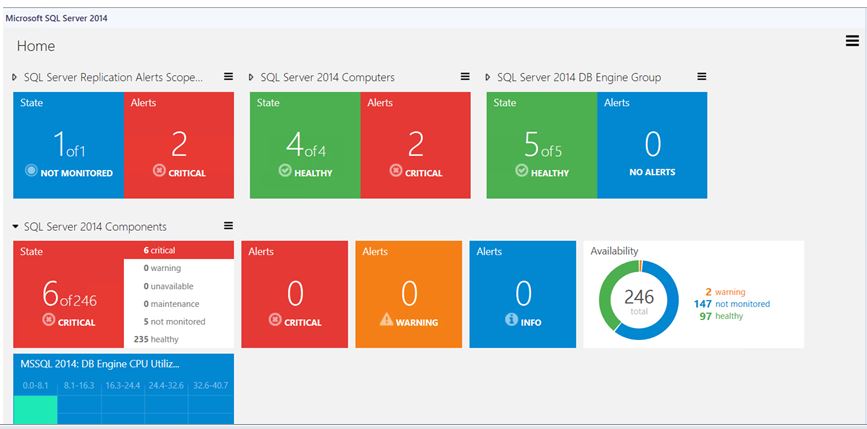
    Microsoft SQL Server Dashboards Management Pack provides an ability to create and customize visualization on the fly. 

    There are two views in the SQL Server Dashboards;
    •  Datacenter view
    • Instance view

    The Datacenter view is an aggregated view. The Instance level provides detailed information about the selected object.

    Datacenter View:

    The Datacenter view is the Dashboard which provides information about the datacenter health state in an aggregated way. It is possible to drill down from the Datacenter view to the Instance view in order to investigate the root cause of the issue. It is possible to return to the home page from any Instance view by clicking the Home part of the navigation pane.


    Datacenter View Tiles:


    Datacenter view tile consists of two parts; the left part displays the number of objects within a group in the worst state and a total number of objects. The right part of the widget displays the number of alerts with the highest severity.


    The expanded mode shows the number of objects in other states in addition to the data which is displayed in the collapsed mode.


    By default when Alerts widget is expanded it displays three Alert widgets: Critical, Warning and Info. The number of alerts for each alert type is displayed within the corresponding widget.


    The Aggregated performance tile shows five columns each representing the number of objects in the current data range.


    Instance View:

    Instance View of the Dashboard opened while drilling into a group or an object from the previous Instance view or Datacenter Dashboard is provided below:


    Tuesday, 15 March 2016

    SQL query to get all Distributed Applications created by users in SCOM

    SQL query to get all Distributed Applications created by users in SCOM


    • Distributed Application are stored in SCOM in ManagedEntity Table
    • All Distributed Applications created by users start with "Service_" in the FullName column
    • If you want to query all your distributed application that are created for reporting purpose use the below query
    ***********
    SELECT * FROM [OperationsManagerDB].[ManagedEntity] where (FullName like 'Service_%' AND Name is NULL)

    *****************


    Wednesday, 24 February 2016

    Microsoft Office 365 SCOM 2012 R2 Management Pack

    Microsoft Office 365 SCOM 2012 R2 Management Pack


    • Office 365 is the Microsoft Cloud based Solution for Office Suite of Products.
    • Using the Management pack give great visibility on the subscripts and alerts that occur in Microsoft Cloud which will affect your subscription.
    • Office 365 Management Pack can be used to: 
    • Add and configure Office 365 subscriptions and custom endpoints to be monitored in the Operations Manager
    • Proactively monitor connection health for the subscriptions and endpoints accessibility
    • Automatically discover services and features available for each subscription
    • Reflect Office 365 Incidents, Message Center, and Planned Maintenance messages for the subscription to Operations Manager alerts
    • Visualize the subscriptions health and corresponding alerts via the dashboard and alert view.

    You can Download the MP from here:

    Monday, 8 February 2016

    Windows Server Monitoring Management pack 6.0.7303.0 for SCOM 2012 R2 -Provides Support to Monitor Windows Nano Server 2016

    Windows Server Monitoring Management pack 6.0.7303.0 for SCOM 2012 R2 -Provides Support to Monitor Windows Nano Server 2016


    Fixed Issues and Support:

    •     MP used to discover physical CPU, which performance monitor instance name property was not correlated with Windows PerfMon object (expecting instance name in (socket, core) format). That affected related rules and monitors. With this release, MP discovers logical processors, rather than physical, and populates performance monitor instance name in proper format
    •       Microsoft.Windows.Server.ClusterSharedVolumeMonitoring.mp and Microsoft.Windows.Server.Library.mp scripts code migration to PowerShell in scope of Windows Server 2016 Nano support (relevantly introduced in Windows Server 2016 MP version 10.0.1.0).
    •   Microsoft.Windows.Server.ClusterSharedVolumeMonitoring.ClusterSharedVolume.Monitoring.State monitor alert properties and description. The fix resolved property replacement failure warning been generated on monitor alert firing.

    Dell EqualLogic Storage MP Suite for SCOM v 6.0 supports PS 6610 and Firmware 8.1.x

    Dell EqualLogic Storage MP Suite for SCOM v 6.0


    • The Dell EqualLogic Storage Management Pack Suite v6.0 enables System Center 2012 R2 Operations Manager, System Center 2012 SP1 Operations Manager, System Center 2012 Operations Manager and System Center Operations Manager 2007 R2 to Discover, Monitor and accurately depict the status of Dell EqualLogic PS Arrays on a defined network segment.
    • The new version supports EqualLogic devices PS6610.
    • Latest version also support Firmwares 8.1.x


    Installation Steps by Step:

    • Download the file to a directory on your hard drive. The file downloaded is a self-extracting executable.
    • Go to the location where you downloaded the file and double-click the executable to unzip the files. The default extraction folder is " C:\Program Files\Dell Management Packs\EqualLogic Storage Management Suite\6.0 ". You may select a different location for file extraction by editing the path.
    • Launch the Dell_EqualLogic_Management_Pack_Suite_x86_x64.exe file from the extracted location. The welcome screen for Dell EqualLogic Management Pack is displayed.
    • Click Next. The license agreement is displayed.
    • To continue the installation, accept the license terms after reading them, and click Next.
    • Click Change (if required) to change the default installation folder and click Next. The Ready to Install the Program screen is displayed.
    •  Click Install. The Installing Dell EqualLogic Storage Management Pack progress screen is displayed.
    • Click Finish on the Install Shield Wizard Completed screen.

    Sunday, 7 February 2016

    SQL Query to get the Maintenance Mode History for Particular Server SCOM 2016


    SQL Query to get the Maintenance Mode History for Particular Server SCOM 2016


    • Many time you get questions from Management whether the particular server was in Maintenance mode and how long.
    • It has always been a challenge for SCOM engineer to pull the Data, as there is now easy way to pull this information.
    • You can use the below SQL query to get that information.
    • What this query does is that it queries the "OperationsManagerDW" database in "ManagedEntity"  table "MaintenanceMode" Table and "MaintenacenModeHistory" table where the ManagetEntity Row ID matches Maintenance mode Manage entity RowID and Maintenance Mode RowId matches Maintenance Mode Manage Entity Row ID.
    • Replace the "Servername" with server name you wan the report for and you will get the Maintenance mode History report for the server


    ********************
    USE OperationsManagerDW
    SELECT ManagedEntity.DisplayName, MaintenanceModeHistory.*
    FROM ManagedEntity WITH (NOLOCK) 
    INNER JOIN
    MaintenanceMode ON ManagedEntity.ManagedEntityRowId = MaintenanceMode.ManagedEntityRowId 
    INNER JOIN
    MaintenanceModeHistory ON MaintenanceMode.MaintenanceModeRowId = MaintenanceModeHistory.MaintenanceModeRowId
    where DisplayName Like '%servername%'

    *******************

    Wednesday, 3 February 2016

    SCOM 2012 R2 UR9 Upgrade Step by Step

    SCOM 2012 R2 UR9 Upgrade Step by Step

    • Microsoft released UP(update Roleup) every now and then. They generally do lot of bug fixes in these update.Today Microsoft has released SCOM UR9 Upgrade. Lets go Step by Step in this upgrade.
    Upgrading the Management Server:

    • Extract the Files that you downloaded to C:\Bin\UR9 folder


    • Login using the SCOM service account or account which has local admin,SCOM admin and SA Admin on SCOM database.Usually your SCOM service account will have these acc. So i suggest to use it.
    • Now Open Command Prompt in elevated mode and Go to "C:\Bin\UR9" folder
    • Type "KB3129774-AMD64-Server.msp"


        •  This will lauch Update.You will be prompted to restart your system after the update.Click yes and system will restart
        • Once its up check the Application log for Event ID 1036. Make sure it successful.


          •  Also check the DLL Versions in the Operations Manager\Server folder and make sure its showing 7.1.10226.1177


              •  You Should upgrade your additional management server in same way.

              Upgrade SCOM Webconsole and SCOM Console:


              • Now Open Command Prompt in elevated mode and Go to "C:\Bin\UR9" folder
              • Type "KB3129774-AMD64-ENU-WebConsole.msp"


              •  This will update the Web console.
              • Next Type "KB3129774-AMD64-ENU-Console.msp"


              •  This will update the Console.


              Updating the Gateway Servers:

              • Login to your Gateway server. Copy the Downloaded file  TO "C:\Bin\UR9" Folder
              • Now Open Command Prompt in elevated mode and Go to "C:\Bin\UR9" folder
              • Type "KB3129774-AMD64-Gateway.msp"

              • This will update the Gateway Server


               Update the SCOM Databases:


              • First Make sure you have stopped all SCOM services on your Management server and restart the SQL Server service once
              • Login to the SCOM Database Server
              • Open a SQL management studio query window, connect it to your Operations Manager database.
              • Now go to the upgrade Management server at below location %SystemDrive%\Program Files\Microsoft System Center 2012 R2\Operations Manager\Server\SQL Script for Update Rollups
              • Copy the SQL Scripts "update_rollup_mom_db.sql" and execute in the Query windows. This script could faill but continue trying till it succeeds


              • Try re-running the script several times until it completes without errors.  In a production environment, you have to shut down the services (sdk, config, and healthservice) on your management servers, to break their connection to the databases, to get a successful run. 
              • Once OperationsManager DB is update close the Query window.
              • Now open a SQL management studio query window, connect it to your OperationsManagerDW database.
              • Copy the SQL Scripts "UR_Datawarehouse.sql" and execute in the Query windows. This script could faill but continue trying till it succeeds.


              Import the management packs:
              • There are 55 management packs in this update!.Most of these we don’t need 
              • The path for these is on your management server, after you have installed the “Server” update: \Program Files\Microsoft System Center 2012 R2\Operations Manager\Server\Management Packs for Update Rollups
              • You can install the MP Shown below and ignore the rest.Total 19 MP's will come.


                Updating the Agents:

                • Login to SCOM Management server
                • Open SCOM Console==>Administration Tab
                • Click on "Pending Management".Select all the agent you see and Click "Approve".