Showing posts with label management. Show all posts

Tuesday, 21 February 2017

SQL server is blank while adding Additional Management Server in SCOM 2012 R2

SQL server is blank while adding Additional Management Server in SCOM 2012 R2


  • I faced a weird issue today. As i was trying to add additional SCOM management Server , The SQL page where we select the OperationsManger DB was blank.
  • After some investigation i found that the Management Server was already showing in the SCOM Management server view as Unmonitored.
  • On i deleted it and tried again it worked and was able to see the OperationsManager DB

Saturday, 15 October 2016

SCCM 2012 R2 Log File for Content Management Issues

SCCM 2012 R2 Log File for Content Management Issues


Content Management

The following table lists the log files that contain information related to content management.
Log name
Description
Computer with log file
For System Center 2012 Configuration Manager SP1 and later:
CloudDP-<guid>.log
Records details for a specific cloud-based distribution point, including information about storage and content access.
Site system server
CloudMgr.log
Records details about the provisioning of content, collecting storage and bandwidth statistics, and administrator initiated actions to stop or start the cloud service that runs a cloud-based distribution point.
Site system server
For System Center 2012 Configuration Manager SP1 and later:
DataTransferService.log
Records all BITS communication for policy or package access. This log is also used for content management by pull-distribution points.
A computer that is configured as a pull-distribution point
For System Center 2012 Configuration Manager SP1 and later:
PullDP.log
Records details about content that the pull-distribution point transfers from source distribution points.
A computer that is configured as a pull-distribution point
PrestageContent.log
Records the details about the use of the ExtractContent.exe tool on a remote prestaged distribution point. This tool extracts content that has been exported to a file.
Site system role
SMSdpmon.log
Records details about the distribution point health monitoring scheduled task that are configured on a distribution point.
Site system role
smsdpprov.log
Records details about the extraction of compressed files received from a primary site. This log is generated by the WMI Provider of the remote distribution point.
A distribution point computer that is not co-located with the site server.

SCCM 2012 R2 Log file for Application Management


SCCM 2012 R2 Log file for Application Management


Application Management

The following table lists the log files that contain information related to Application Management.
Log name
Description
Computer with log file
AppIntentEval.log
Records details about the current and intended state of applications, their applicability, whether requirements were met, deployment types, and dependencies.
Client
AppDiscovery.log
Records details about the discovery or detection of applications on client computers. 
Client
AppEnforce.log
Records details about enforcement actions (install and uninstall) taken for applications on the client.
Client
awebsctl.log
Records the monitoring activities for the Application Catalog web service point site system role.
Site system server
awebsvcMSI.log
Records detailed installation information for the Application Catalog web service point site system role.
Site system server
Ccmsdkprovider.log
Records the activities of the application management SDK.
Client
colleval.log
Records details about when collections are created, changed, and deleted by the Collection Evaluator.
Site system server
ConfigMgrSoftwareCatalog.log
Records the activity of the Application Catalog, which includes its use of Silverlight.
Client
portlctl.log
Records the monitoring activities for the Application Catalog website point site system role.
Site system server
portlwebMSI.log
Records the MSI installation activity for the Application Catalog website role.
Site system server
PrestageContent.log
Records the details about the use of the ExtractContent.exe tool on a remote prestaged distribution point. This tool extracts content that has been exported to a file.
Site system server
ServicePortalWebService.log
Records the activity of the Application Catalog web service.
Site system server
ServicePortalWebSite.log
Records the activity of the Application Catalog website.
Site system server
SMSdpmon.log
Records details about the distribution point health monitoring scheduled task that is configured on a distribution point.
Site server
SoftwareCatalogUpdateEndpoint.log
Records the activities for managing the URL for the Application Catalog shown in Software Center.
Client
SoftwareCenterSystemTasks.log
Records the activities for Software Center prerequisite component validation.
Client

SCCM 2012 R2 Management point Log Files

SCCM 2012 R2 Management point Log Files


Management Point Logs Files

The following table lists the log files that contain information related to the management point.
Log name
Description
Computer with log file
CcmIsapi.log
Records client messaging activity on the endpoint.
Site system server
MP_CliReg.log
Records the client registration activity processed by the management point.
Site system server
MP_Ddr.log
Records the conversion of XML.ddr records from clients, and copies them to the site server.
Site system server
MP_Framework.log
Records the activities of the core management point and client framework components.
Site system server
MP_GetAuth.log
Records client authorization activity.
Site system server
MP_GetPolicy.log
Records policy request activity from client computers.
Site system server
MP_Hinv.log
Records details about the conversion of XML hardware inventory records from clients and the copy of those files to the site server.
Site system server
MP_Location.log
Records location request and reply activity from clients.
Site system server
MP_OOBMgr.log
Records the management point activities related to receiving OTP from a client.
Site system server
MP_Policy.log
Records policy communication.
Site system server
MP_Relay.log
Records the transfer of files that are collected from the client.
Site system server
MP_Retry.log
Records the hardware inventory retry processes.
Site system server
MP_Sinv.log
Records details about the conversion of XML software inventory records from clients and the copy of those files to the site server.
Site system server
MP_SinvCollFile.log
Records details about file collection.
Site system server
MP_Status.log
Records details about the conversion of XML.svf status message files from clients and the copy of those files to the site server.
Site system server
mpcontrol.log
Records the registration of the management point with WINS. Records the availability of the management point every 10 minutes.
Site server
mpfdm.log
Records the actions of the management point component that moves client files to the corresponding INBOXES folder on the site server.
Site system server
mpMSI.log
Records details of about the management point installation.
Site server
MPSetup.log
Records the management point installation wrapper process.
Site server

Tuesday, 2 August 2016

Edge servers not discovered in Skype Management pack in SCOM 2012 R2

Edge servers not discovered  in Skype Management pack in SCOM 2012 R2


  • Recetnly i was working for one of my customer and they have imported the Skype Management pack. All Skype roles are discovered except the Edge Server.
  • They are showing as Agent management in the SCOM server, but still not appear in Skype Management pack.
Action taken:

  • I directly felt that discovery script for Skype is failing on these server. As generally Edge servers are in DMZ, then are not in Domain.
  • So i went to Agent Skype Edge server and Check the Operations manager event log for Error and found the following
Description: DiscoverMachine.ps1 : ——————————————————————————– -Script Name: Skype for Business Server 2015 MP Machine Topology Discovery -Run as account: nt authority\network service -Execution Policy: RemoteSigned ——————————————————————————– Value of Source Id is {5AAFA97E-833F-9AD1-2678-56AFD1E2214C}. Value of ManagedEntity Id is {C4F6E362-BE95-93C1-729D-3F7BD6FAAFD6}. Value of Target Computer is EDGESERVER01.group.domain.com. SkypeForBusiness Module is added Successfully initialize discovery data. An exception occurred during discovery script, Exception : Could not connect to SQL server : [Exception=System.Data.SqlClient.SqlException (0x80131904): Cannot open database “xds” requested by the login. The login failed. Login failed for user ‘NT AUTHORITY\NETWORK SERVICE’. 

Solution:

  • Add the “Network Service” to the following local groups on each Edge server.
  • "RTC Component Local Group" and "
    RTC Local Administrators".
  • Also enabe Proxy on the agent.
  • Then restart the SCOM service on the agent and voila its show in Skype management pack in few minutes.

Thursday, 7 July 2016

Dell Client Management Pack Version 5.1 for SCOM 2012 R2

Dell Client Management Pack Version 5.1 for SCOM 2012 R2


The Client Management Pack enables the following operations to manage Dell client systems:


  • Discover and monitor Dell Latitude, Dell Precision, and Dell OptipPlex computers running supported OMCI and client Windows operating systems.
  • Group Dell Clients without instrumentation and client systems running without OMCI service under the Dell UnManaged Clients group.NOTE: Dell Vostro systems are displayed under the Dell UnManaged Clients group.
  • Monitor the health status for client hardware components by polling at periodic intervals, and update the state of each component in the diagram view. A health status is a standardized description of the functional performance of a component, system, or service. For more information, see Tasks
  • Perform client shutdown and reboot tasks.
  • Launch remote desktop for Dell client systems.
  • Generate reports on Dell Windows


Sunday, 24 April 2016

SCOM 2012 R2 Windows Server 2012 R2 Storage Direct Management Pack

SCOM 2012 R2 Windows Server 2012 R2 Storage Direct  Management Pack


  • Microsoft has released a new Storage Management Pack for Window Server 2012 R2.
  • This management pack supports up to:
    16 Storage Nodes
    12 Storage Pools
    120 File Shares.
  • This Management Pack contains rules to monitor physical disk and enclosure state in storage spaces.
  • Health is calculated by the storage service and is passed to Virtual Machine Manager (VMM) using the Storage Management API (SM-API), and is in turn passed to Operations Manager (OM) through the OM connector for VMM.

  • There are no state or alert visualizations as part of this MP. 
  • All alerts for physical disks and enclosures must be manually closed and any health state impact manually reset.
  • You can see file share and storage pool health on the VMM Fabric Dashboard or you can build your own views in a custom MP. 
  • If OM agent proxy setting is not enabled for file server nodes and VMM server, it needs to be turned on. This can be done from Administration space in OM console.
You can see the Rollup Model below for the MP


You can Download the Management pack from here -->Click here to download

Tuesday, 12 April 2016

SCOM Management Server showing warning with Event ID 1825 - A security package specific error occurred

SCOM Management Server showing warning with "Event ID 1825 - A security package specific error occurred"


  • Today when i checked the SCOM management Server it was in Warning state.
  • When i open the health explorer i could see only "Failed to access event log" is selected and its in warning state with error in details "A security package specific error occurred".
  • When i tried to access the event log from the SCOM management server it failed with the same error.
  • so i decided to do a nslookup of the server and found that the reverse lookup is pointing to the alias of the server rather then the actual server name.
  • Once it was resolved things got health again.
  • So when you have this issue, its usually issue with the DNS entries which needs to be fixed

Thursday, 31 March 2016

Known Issues and Troubleshooting for Windows Server Base OS Management pack

Known Issues and Troubleshooting for Windows Server Base OS Management pack


  • Disk Partitions Which Correspond to Mounted Disks Are Not Monitored

Issue: Disk partition discovery is not enabled by default, but when enabled, disk partitions that correspond to mounted disks cannot be monitored properly and will show up as “Not Monitored” in the Operations Console. Management is still provided by way of other means in this management pack, but the disk partition perspective will not work in these instances.
Workaround: There is no workaround currently available. 
  • The “Core Windows Services Rollup” Monitor for Windows Server 2008 Includes Services That It Should Not

Issue: The Core Windows Services Rollup monitoring that exists in all server operating system management packs aggregates the state of a number of monitors that are watching the state of various “core services” and will change state if any one of those services is not running. The Windows Server 2008 version of this monitor includes a monitor for the “Computer Browser Service Health,” which is not accurate because the service is no longer required for the Windows Server 2008 operating system to function properly.
Workaround: The monitor can be safely ignored, but it can also be disabled by overriding it.
  • Remote Desktop (Admin) Not Always Accessible

Issue: There are times when Remote Desktop (Admin) is not accessible.
Workaround: The new Remote Desktop (Admin) functionality of Windows Server 2008 is supported by way of the /admin switch. However, it is available only in Windows Server 2008 and the Windows Vista operating system with SP1.

  • The Console Session Does Not Work in Windows Server 2008
Issue: Attempts to use the /console switch do not work properly.
Workaround: The console session no longer exists in Windows Server 2008. Use of the /console switch will be ignored, and the behavior is the same as a simple Remote Desktop task.

  • Behavior for Accessing the Console Session of Windows Server 2003 Has Changed
Issue: There is a change in behavior for accessing the console session of Windows Server 2003.
Workaround: For the Windows XP operating system with SP1 or earlier and Windows Vista, use the Remote Desktop (Console) task in Windows Server 2003. Remote Desktop (Admin) will cause an error dialog. For Windows Vista with SP1, use the Remote Desktop (Admin) task in Windows Server 2008. Remote Desktop (Console) will work as the Remote Desktop task without any notice.

  • SUBST Drive Mappings Are Not Supported by Logical Disk Monitoring
Issue: There is a command-line tool (SUBST.exe) that can be used to associate a path (such as c:\windows\system32) with a drive letter (such as D:\). Because these mappings are exposed in WMI, logical disk monitoring discovers them and attempts to monitor them as such, but will subsequently generate errors.
Workaround: There is no workaround currently available, and this configuration is not supported.

Known Issues with Localized Versions of the Management Pack:


  •  Object discoveries scoped to Windows Server 2008 Computer and Windows Server 2008 Operating System may not display correctly in the Authoring pane.
  • Some instances of localized display strings may not display correctly in the Operations console.
Known Issue: Cluster Disks Managed by Third-Party Software are Not Monitored

  • Issue: If the Cluster disks are managed by third party software, and they change the resource type to anything other than “Physical Disk”, these disks will be discovered but we do not provide monitoring for these.
  • Workaround: There is no workaround currently available. In future, we will be removing discovery for these too.
Known Issue: PowerShell in 2012 MP failed if .NET is uninstalled from Core OS agent by user

  • Issue: .NET 4.5 and PowerShell are installed by default on Core OS and PowerShell depends on .NET, if they are uninstalled from Core OS agent by user, some workflows depending on PowerShell in 2012 MP will be failed.
  • Workaround: Install .NET Framework 4.5 and PowerShell on Core Operating System.

Monday, 28 March 2016

SCOM Management pack for SQL Server Reporting Service 2012 (SSRS)

SCOM Management pack for SQL Server Reporting Service 2012


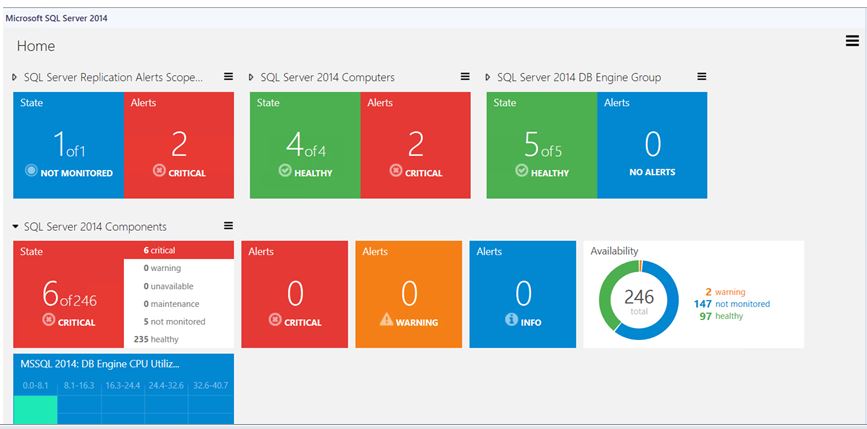
Microsoft SQL Server Dashboards Management Pack provides an ability to create and customize visualization on the fly. 

There are two views in the SQL Server Dashboards;
  •  Datacenter view
  • Instance view

The Datacenter view is an aggregated view. The Instance level provides detailed information about the selected object.

Datacenter View:

The Datacenter view is the Dashboard which provides information about the datacenter health state in an aggregated way. It is possible to drill down from the Datacenter view to the Instance view in order to investigate the root cause of the issue. It is possible to return to the home page from any Instance view by clicking the Home part of the navigation pane.


Datacenter View Tiles:


Datacenter view tile consists of two parts; the left part displays the number of objects within a group in the worst state and a total number of objects. The right part of the widget displays the number of alerts with the highest severity.


The expanded mode shows the number of objects in other states in addition to the data which is displayed in the collapsed mode.


By default when Alerts widget is expanded it displays three Alert widgets: Critical, Warning and Info. The number of alerts for each alert type is displayed within the corresponding widget.


The Aggregated performance tile shows five columns each representing the number of objects in the current data range.


Instance View:

Instance View of the Dashboard opened while drilling into a group or an object from the previous Instance view or Datacenter Dashboard is provided below:


Thursday, 10 March 2016

Dont install the latest Window OS Management pack -Serious Issues can mess up your monitoring

Dont install the latest Window OS Management pack -Serious Issues can screw up your monitoring


  • Recently released Microsoft OS MP has some serious issues.
  • There is total broken up and the Disk Monitoring is totally mess up.
  • People around the world are complaining about it.
  • I cant imagine when the product has so much investment each time when the OS MP comes it causes lot of issue.
  • I dont know when Microsoft is going to stick to the standard and release a quality OS MP without any issue.
  • Latest verison of this MP is 6.0.7297.0 and it a total avoid :)

Wednesday, 24 February 2016

Microsoft Office 365 SCOM 2012 R2 Management Pack

Microsoft Office 365 SCOM 2012 R2 Management Pack


  • Office 365 is the Microsoft Cloud based Solution for Office Suite of Products.
  • Using the Management pack give great visibility on the subscripts and alerts that occur in Microsoft Cloud which will affect your subscription.
  • Office 365 Management Pack can be used to: 
  • Add and configure Office 365 subscriptions and custom endpoints to be monitored in the Operations Manager
  • Proactively monitor connection health for the subscriptions and endpoints accessibility
  • Automatically discover services and features available for each subscription
  • Reflect Office 365 Incidents, Message Center, and Planned Maintenance messages for the subscription to Operations Manager alerts
  • Visualize the subscriptions health and corresponding alerts via the dashboard and alert view.

You can Download the MP from here:

Monday, 8 February 2016

Windows Server Monitoring Management pack 6.0.7303.0 for SCOM 2012 R2 -Provides Support to Monitor Windows Nano Server 2016

Windows Server Monitoring Management pack 6.0.7303.0 for SCOM 2012 R2 -Provides Support to Monitor Windows Nano Server 2016


Fixed Issues and Support:

  •     MP used to discover physical CPU, which performance monitor instance name property was not correlated with Windows PerfMon object (expecting instance name in (socket, core) format). That affected related rules and monitors. With this release, MP discovers logical processors, rather than physical, and populates performance monitor instance name in proper format
  •       Microsoft.Windows.Server.ClusterSharedVolumeMonitoring.mp and Microsoft.Windows.Server.Library.mp scripts code migration to PowerShell in scope of Windows Server 2016 Nano support (relevantly introduced in Windows Server 2016 MP version 10.0.1.0).
  •   Microsoft.Windows.Server.ClusterSharedVolumeMonitoring.ClusterSharedVolume.Monitoring.State monitor alert properties and description. The fix resolved property replacement failure warning been generated on monitor alert firing.

RightFax Management Pack from Infront consulting


RightFax Management Pack from infront

  • Infornt Consulting has released a deep dirve Management pack for RightFax.
  • This helps Montior RightFax End to end and give great visibility of the problems that arises.
  • You can see a detail video from Infornt Consulting on how it works below


Thursday, 8 October 2015

How to view the dependencies for a management pack

How to view the dependencies for a management pack


Many times you want to know what management pack are the current MP depend on,


To view the dependencies for a management pack

  • In the Operations console, in the Administration workspace, click Management Packs.
  • Right-click the desired management pack, and then click Properties.
  • In the Properties dialog box for the management pack, click the Dependencies tab.
  • The Dependencies tab lists any management packs that the selected management pack depends on and any management packs that depend on the selected management pack.

What does Sealed and Unsealed Management Packs mean

What does Sealed and Unsealed Management Packs mean


  • Management packs are either sealed or unsealed. A sealed management pack is a binary file that cannot be edited. An unsealed management pack is an XML file that can be edited. Sealed management packs should have an .mp extension, while unsealed management packs should have an .xml extension.

  • In general, management packs obtained from an application or hardware device vendor are sealed.
Although you cannot change the settings in a sealed management pack, you can still customize the applied settings of a management pack after it is imported by using overrides or by creating additional settings such as rules, monitors, and tasks that supersede the management pack's default settings. All customizations that you create are saved to a separate management pack file.

What is a Management Pack in SCOM mean

What is a Management Pack in SCOM mean

  • Generally when you explain to your top management about SCOM, you use the word Management pack. All of sudden on of the executive stopped and asked me what does Management Pack mean, So i taught it would be useful if i give some explanation here.
  • Management packs typically contain monitoring settings for applications and services. After a management pack is imported into a management group, System Center 2012 – Operations Manager immediately begins monitoring objects based on default configurations and thresholds that are set by the management pack.
Each management pack can contain any or all of the following parts:
  • Monitors, which direct an agent to track the state of various parts of a managed component.
  • Rules, which direct an agent to collect performance and discovery data, send alerts and events, and more.
  • Tasks, which define activities that can be executed by either the agent or the console.
  • Knowledge, which provides textual advice to help operators diagnose and fix problems.
  • Views, which offer customized user interfaces for monitoring and managing this component.
  • Reports, which define specialized ways to report on information about this managed component.
  • Object discoveries, which identify objects to be monitored.
  • Run As profiles, which allow you to run different rules, tasks, monitors, or discoveries under different accounts on different computers.

Friday, 18 September 2015

New Windows Server Operating System Management pack for Windows 2012 R2 version 6.0.7297.0

New Windows Server Operating System Management pack for Windows 2012 R2 Version 6.0.7297.0


  • Microsoft has released a new MP for Windows Server which include 2012,2012 R2, Windows 2008
Following are the Fixes that has been done in this latest

  • In 2008, 2012 platforms, the “Logical Disk Free Space (%) Low” monitor do not alert as expected when free space is 0%. With this fix, this monitor will alert when free space is 0%
  • In all platforms, logical disks are un-discovered if we configure them as Asymmetric storage on Failover Cluster. With this fix, this issue will be resolved
  • The Windows Server OS Management pack collects logical disk size is megabytes. During discovery this value used to be assigned to integer property. When logical disk size is significantly large (for example, when disk is of several petabytes), in megabytes format it goes out of boundaries of integer type. As a result the workflow fails while trying to insert discovery data. To support large logical disk another double properties was introduced, since double type has much more wide values range. Old integer property with constant “-1” value is preserved for upgrade compatibility and marked as DEPRECETED
  • “Volume Mount Points on Dynamic Disks” aren’t discovered by Microsoft Windows Server 2012 Discovery MP. With this fix, this issue will be resolved
  • MP has been modified to not discover System Reserved volumes on Windows Server 2012 to ensure it is consistent with the rest of the OS versions

To Download the Latest MP: Click Here

Monday, 29 June 2015

Open Source Management Pack for SCOM 2016 to monitor Apache webserver and My SQL

Open Source Management Pack for SCOM 2016:

  • Microsoft has release Opensource Management pack or OSS MP which allows to monitor Opensource technology using SCOM.
  • Now you can monitor Apache Webserver, MYSQL database using SCOM itself.
  • Infact the entire LAMB stack is not supported and caN be monitored using SCOM 2016.
  • You can Download the OSS MP from the below location
  • Click here

Import Management Pack using Powershell SCOM 2012 R2

Importing Management Pack using Powershell SCOM 2012 R2:


  • Inoder to Import the MP using Powershell use the below command
Import-SCOMManagementPack -FullName "C:\Test.mp"

  • This will import the MP.