Showing posts with label SQL. Show all posts

Tuesday, 21 February 2017

SQL server is blank while adding Additional Management Server in SCOM 2012 R2

SQL server is blank while adding Additional Management Server in SCOM 2012 R2


  • I faced a weird issue today. As i was trying to add additional SCOM management Server , The SQL page where we select the OperationsManger DB was blank.
  • After some investigation i found that the Management Server was already showing in the SCOM Management server view as Unmonitored.
  • On i deleted it and tried again it worked and was able to see the OperationsManager DB

Tuesday, 17 January 2017

Install a Linux SQL Server VM in Azure Step by Step Tutorial

 Install a Linux SQL Server VM in Azure Step by Step Tutorial


To Create a Linux VM with SQL Server installed

  • Open the Azure portal.
  • Click New on the left.
  • In the New blade, click Compute.
  • Click See All next to the Featured Apps heading.
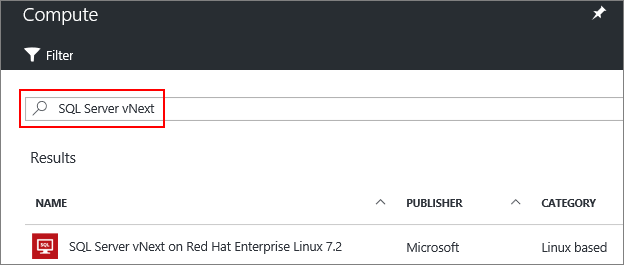
  • In the search box, type SQL Server vNext, and press Enter to start the search.


  • Select a SQL Server vNext image from the search results.
  • Click Create.
  • On the Basics blade, fill in the details for your Linux VM.
  • Click OK.
  • On the Size blade, choose a machine size. For development and functional testing, we recommend a VM size of DS2 or higher. For performance testing, use DS13 or higher.

  • Click Select.
  • On the Settings blade, you can make changes to the settings or keep the default settings.
  • Click OK.
  • On the Summary page, click OK to create the VM.

Install SQL Server tools on Red Hat Enterprise Linux Step by Step tutorial

Install SQL Server tools on Red Hat Enterprise Linux


  • Enter superuser mode.

sudo su


  • Download the Microsoft Red Hat repository configuration file.


curl https://packages.microsoft.com/config/rhel/7/prod.repo > /etc/yum.repos.d/msprod.repo


  • Exit superuser mode.


exit


  • Run the following commands to install 'mssql-tools' with the unixODBC developer package.


sudo yum update
sudo yum install mssql-tools unixODBC-utf16-devel

Uninstall SQL Server on Red Hat Enterprise Linux Step by Step Tutorial

Uninstall SQL Server on Red Hat Enterprise Linux Step by Step Tutorial


  • In order to remove the mssql-server package, follow these steps:

  • Run the remove command. This will delete the package and remove the files under /opt/mssql/. However, this command will not affect user-generated and system database files, which are located under /var/opt/mssql.

sudo yum remove mssql-server

  • Removing the package will not delete the generated database files. If you want to delete the database files use the following command:

sudo rm -rf /var/opt/mssql/

Upgrade SQL Server on Red Hat Enterprise Linux Step by Step Totorial

Upgrade SQL Server on Red Hat Enterprise Linux Step by Step Totorial


  • In order to upgrade the mssql-server package, execute the following command:

sudo yum update mssql-server


  • These commands will download the newest package and replace the binaries located under /opt/mssql/. The user generated databases and system databases will not be affected by this operation.

Install SQL Server on Red Hat Enterprise Linux 7.3 Step by Step Tutorial

Install SQL Server on Red Hat Enterprise Linux 7.3 Step by Step Tutorial


Video:


  • You need at least 3.25GB of memory to run SQL Server on Linux. 
  • To install the mssql-server package on RHEL, follow these steps:
  • Enter superuser mode.

sudo su

  • Download the Microsoft SQL Server Red Hat repository configuration file:

curl https://packages.microsoft.com/config/rhel/7/mssql-server.repo > /etc/yum.repos.d/mssql-server.repo

  • Exit superuser mode.

exit

  • Run the following commands to install SQL Server:

sudo yum install -y mssql-server

  • After the package installation finishes, run the configuration script and follow the prompts. Make sure to specify a strong password for the SA account (Minimum length 8 characters, including uppercase and lowercase letters, base 10 digits and/or non-alphanumeric symbols).

sudo /opt/mssql/bin/sqlservr-setup

  • Once the configuration is done, verify that the service is running:

systemctl status mssql-server

Wednesday, 30 March 2016

Known Issues and Troubleshooting for SSAS 2008 MP

Known Issues and Troubleshooting for SSAS 2008 MP


  • Users who had the previous version of SSAS management pack installed should remove Microsoft SQL Server Analysis Services Visualization Library (version 1.0.5.0) manually.

Issue: The library has become a generic component and a new management pack that contains the functionally is released. Since it is impossible to remove the obsolete pack automatically during installation process, users have to do it manually.
Resolution: Remove Microsoft SQL Server Analysis Services Visualization Library (version 1.0.5.0).

  • If the last SSAS database or partition is deleted the object will be still displayed in SCOM as if it exists.

Issue: Current implementation of SSAS database and partition discoveries incorrectly resolves the situation when the last SSAS database or partition is deleted. In the case the information regarding the deleted object is still visible to the user.
Resolution: There is no resolution. The error may be addressed in future releases of the management pack. A user can either add a SSAS database/partition or remove the SSAS instance.

  • ‘An error occurred during execution of a SSAS 2008 MP managed module’ alert rule generates extra alerts for virtual nodes.

Issue: Current implementation of the rule uses ‘SSAS 2008 Seed’ as a target. Virtual nodes have mutual seed, as a result each time an error occurs on a physical machine an alert is automatically reported from every virtual entity which is currently associated with that physical machine.
Resolution: There is no resolution. The error may be addressed in future releases of the management pack.

  • Event 6200 “Analysis Services connection failed” error is reported into Operations Manager event log.

Issue: Instance discovery workflows of SSAS management pack require connection to a SSAS instance, if the connection is not provided the workflows report about encountered problems. Such an issue may occur when the instance is stopped during execution of a workflow, or when the instance is incorrectly configured.
Resolution: Set ‘Threadpool\Query\MaxThreads’ property to a value of less than or equal to two times the number of processors on the server.

  • Operations Consoles crash when user simultaneously opens two or more Instance/Database Summary dashboards on the same machine.

Issue: It is allowed to run two or more Operations Consoles on the same machine, but opening summary dashboards in more than one of them leads to a crash of all consoles. The issue is not observed in Web-consoles.
Resolution: There is no resolution.

  • Operations Console crashes if user who is browsing Instance Summary dashboard selects a SSAS Instance which has already been deleted.

Issue: The action cause a crash of Operations Console.
Resolution: Open Operation console again.

  • “Health Service State” monitor is in critical state and Health Service restarts periodically.

Issue: By default the threshold of “Monitoring Host Private Bytes Threshold Monitor” from the System Management Pack is 300 Mbytes. “MonitoringHost.exe” process may exceed the threshold and the “Health Service State” monitor may start the recovery procedure, when SSAS 2008 Monitoring Pack is collecting information about a large number of objects (more than 50 SSAS databases or 1500 partitions per server).
Resolution: Override the threshold of the “Monitoring Host Private Bytes Threshold Monitor” or reduce the number of objects being monitored by disabling discovery of partition objects.

  • Event 6200 “Category does not exist” (source – “SSAS 2008 MP”) is being generated on 64-bit operating systems running 32-bit SSAS instances.

Issue: SSAS doesn’t register performance counters properly when a 32-bit SSAS instance is installed on a 64-bit OS. In this case required performance counters cannot be found by Monitoring Pack and SSAS 2008 MP is unable to run properly.
Resolution: This issue cannot be resolved, WoW64 is not supported. It is highly recommended to use either 32-bit SSAS instances on 32-bit OS or 64-bit SSAS instances on 64-bit OS.

  • Health Service and Monitoring Host processes consume too much memory on systems running SSAS 2008 instances with large number of databases

Issue: On agent-managed systems that host one or more instance of SQL Server 2008 Analysis Services with large number of databases and/or partitions, “Health Service” and “Monitoring Host” processes may consume too much memory.
Resolution: It is not recommended to monitor more than 50 SSAS Databases on a single server. It is recommended to disable SSAS partitions discovery if you have more than 1500 partitions on a single server.

  • SSAS 2008 Summary Dashboards for Instances, Databases and Partitions display all active alerts if nothing is selected in the navigation widget (leftmost widget on the dashboard).

Issue: Dashboards display all active alerts if nothing is selected in the navigation widget (leftmost widget on the dashboard).
Resolution: Make sure that at least one Instance, Database or Partition is selected in the navigation widget.

  • WMI errors may occur when SQL Server AS 2008/2008 R2 and SQL Server AS 2012 are installed on the same server.

Issue: Modules can throw an error during WMI query.
Resolution: Update SQL Server 2008/2008 R2 with the latest service pack.

  • Partition Storage Free Space Monitor may generate too many alerts.

Issue: The monitor may generate a lot of alerts if database default storage folder and partition storage folder are sharing the same drive.
Resolution: Disable the monitor for all partitions which are sharing the same drive with database storage folder.

  • SSAS Seed object cannot be discovered if SQL Server 2008 Express Edition and SQL Server 2008 are installed on the same server.

Issue: SSAS 2008 Monitoring Pack can throw a WMI error during Seed object discovery.
Resolution: Update SQL Server 2008/2008 R2 with the latest service pack or disable Seed object discovery for a given server if that server is not running an Instance of SQL Server 2008 Analysis Services.

  • SSAS 2008 Monitoring Pack generates an alert: “An error occurred during execution of a SSAS 2008 MP managed module”.

Issue: Alert “An Error occurred during execution of a SSAS 2008 MP managed module” can be found in global “Active Alerts” view.
Resolution: This alert is generated if SSAS 2008 Monitoring Pack cannot execute one of workflows due to unknown issue. Examine alert message and alert context to determine the root cause.

  • SSAS 2008 Monitoring Pack may register Errors in the event log during installation of a new instance of SQL Server Analysis Services.

Issue: SSAS 2008 Monitoring Pack may generate a lot of errors in event log during installation of a new instance of SQL Server Analysis Services.
Resolution: The issue occurs because Monitoring Pack cannot get all required properties from the registry and WMI during installation process. Once the installation process is completed, the Monitoring Pack will be able to operate properly.

  • SQL Server 2008 Analysis Services reports incorrect value for Total and Low memory limit performance counters.

Issue: SQL Server Analysis Services may report incorrect values for Total and Low memory limit performance counters after reconfiguration.
Resolution: SQL Server Analysis Services doesn’t apply new configuration values immediately. SSAS service should be restarted to apply new settings.

  • SSAS 2008 Monitoring Pack generates an alert: “Could not find a part of the path to configuration file 'msmdsrv.ini'”

Issue: SSAS 2008 Monitoring Pack reports an error in the Event log and generates an alert “Could not find a part of the path to configuration file 'msmdsrv.ini'”. The issue occurs during cluster failover.
Resolution: There is no resolution. The issue may occur when monitoring workflow is trying to collect information during cluster failover. Once the failover is completed, the Monitoring Pack will be able to operate properly.

  • SSAS 2008 Monitoring Pack may not collect OS performance counters with localized names

Issue: SSAS 2008 Monitoring Pack may not collect OS performance counters with localized names.
Resolution: Workaround: set English display language for user accounts associated with SSAS Discovery and Monitoring Run AS Profiles. Also apply English as display language for system accounts.

Monday, 28 March 2016

SCOM Management pack for SQL Server Reporting Service 2012 (SSRS)

SCOM Management pack for SQL Server Reporting Service 2012


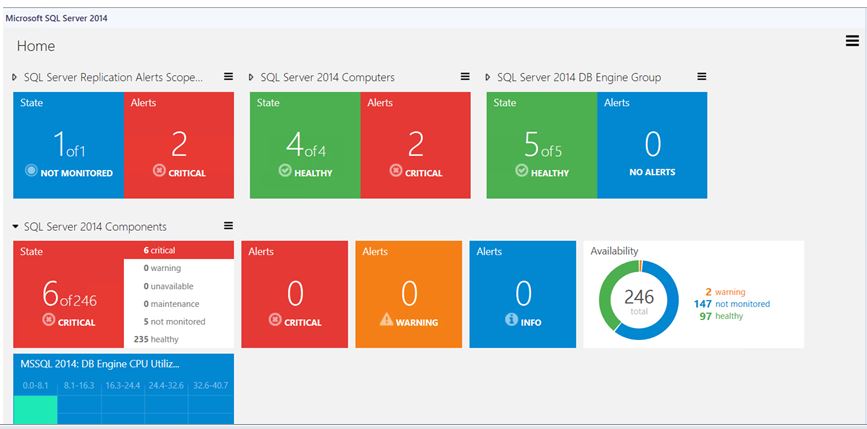
Microsoft SQL Server Dashboards Management Pack provides an ability to create and customize visualization on the fly. 

There are two views in the SQL Server Dashboards;
  •  Datacenter view
  • Instance view

The Datacenter view is an aggregated view. The Instance level provides detailed information about the selected object.

Datacenter View:

The Datacenter view is the Dashboard which provides information about the datacenter health state in an aggregated way. It is possible to drill down from the Datacenter view to the Instance view in order to investigate the root cause of the issue. It is possible to return to the home page from any Instance view by clicking the Home part of the navigation pane.


Datacenter View Tiles:


Datacenter view tile consists of two parts; the left part displays the number of objects within a group in the worst state and a total number of objects. The right part of the widget displays the number of alerts with the highest severity.


The expanded mode shows the number of objects in other states in addition to the data which is displayed in the collapsed mode.


By default when Alerts widget is expanded it displays three Alert widgets: Critical, Warning and Info. The number of alerts for each alert type is displayed within the corresponding widget.


The Aggregated performance tile shows five columns each representing the number of objects in the current data range.


Instance View:

Instance View of the Dashboard opened while drilling into a group or an object from the previous Instance view or Datacenter Dashboard is provided below:


Tuesday, 15 March 2016

SQL query to get all Distributed Applications created by users in SCOM

SQL query to get all Distributed Applications created by users in SCOM


  • Distributed Application are stored in SCOM in ManagedEntity Table
  • All Distributed Applications created by users start with "Service_" in the FullName column
  • If you want to query all your distributed application that are created for reporting purpose use the below query
***********
SELECT * FROM [OperationsManagerDB].[ManagedEntity] where (FullName like 'Service_%' AND Name is NULL)

*****************


Sunday, 7 February 2016

SQL Query to get the Maintenance Mode History for Particular Server SCOM 2016


SQL Query to get the Maintenance Mode History for Particular Server SCOM 2016


  • Many time you get questions from Management whether the particular server was in Maintenance mode and how long.
  • It has always been a challenge for SCOM engineer to pull the Data, as there is now easy way to pull this information.
  • You can use the below SQL query to get that information.
  • What this query does is that it queries the "OperationsManagerDW" database in "ManagedEntity"  table "MaintenanceMode" Table and "MaintenacenModeHistory" table where the ManagetEntity Row ID matches Maintenance mode Manage entity RowID and Maintenance Mode RowId matches Maintenance Mode Manage Entity Row ID.
  • Replace the "Servername" with server name you wan the report for and you will get the Maintenance mode History report for the server


********************
USE OperationsManagerDW
SELECT ManagedEntity.DisplayName, MaintenanceModeHistory.*
FROM ManagedEntity WITH (NOLOCK) 
INNER JOIN
MaintenanceMode ON ManagedEntity.ManagedEntityRowId = MaintenanceMode.ManagedEntityRowId 
INNER JOIN
MaintenanceModeHistory ON MaintenanceMode.MaintenanceModeRowId = MaintenanceModeHistory.MaintenanceModeRowId
where DisplayName Like '%servername%'

*******************

Tuesday, 25 August 2015

Cool Dashboards in recent SQL 2012 MP

Cool Dashboard in recent SQL 2012 MP


  • Microsoft has released a pretty cool dashboard in recent SQL 2012 MP.
  • It gives awesome dashbaord view for the team to Monitoring and know you database perforamnce from single console
  • To Download latest MP click here --> Download


Thursday, 28 May 2015

SQL query to find out if your SCOM 2012 R2 Grooming jobs are succeeding

SQL query to find out if your SCOM 2012 R2 Grooming jobs are succeeding:


  • Grooming jobs are very important in SCOM.
  • If grooming fails then your old data is not removed as per your grooming settings.
  • This will cause your database to fillup and also cause slowness.
  • You need to regularly monitor the Grooming jobs are will face a outage.
  • Unfortunately, SCOM only raise alert if the grooming fails for atleast 6 days.
  • So by this time depending on your environment there could be lot of issues  and grooming could never be completd
  • So i came up with SQL query which you can use to daily check after 6:00 AM server time
  • "SELECT * FROM INTERNAJOBHISTORY ORDER BY INTERALJOBHISTORYID DESC"
  • Run the above query and check if the grooming jobs succeeds. You should do this daily to avoid our OperationsManager Database gets filled.